Mention the term “VPN” and most people picture a subscription app that hides their location and encrypts their browsing. Your router’s built-in VPN does something different, though: it lets you tunnel back into your own home network from anywhere in the world.
What’s that VPN you’re talking about?
Two features share a name, but not a purpose

The VPN apps sold by companies like NordVPN, ExpressVPN, or Proton are built around a single idea: routing your traffic through a third-party server so your internet activity looks like it’s coming from somewhere else. That’s VPN client mode, and it’s the version most consumers know, since it’s marketed heavily as a privacy and streaming tool. Plenty of routers can run in that same client mode, pushing every connected device’s traffic out through a commercial VPN provider without installing anything on individual phones or laptops.
But most mid-range and higher-end consumer routers, from brands like TP-Link, Asus, Netgear, and Linksys, also ship with a second, less publicized feature: a VPN server. Instead of sending your traffic somewhere else, this mode turns your router into the destination. Think of something like Tailscale, but built into your hardware. When you enable it, the router starts listening for incoming VPN connections from the outside internet, and any device you authorize can tunnel in and effectively join your home network as if it were physically there, no matter where in the world that device actually is.
That distinction is important because the two modes solve opposite problems. VPN client mode is about disguising where your traffic originates. VPN server mode is about reaching devices and services that only exist on your home network, such as a NAS drive, a security camera system, or a media server, without exposing them directly to the internet. Support for it usually lives under a “VPN Server” or “VPN” section in the router’s admin panel, often tucked under an “Advanced” or “Security” tab, and typically offers a choice of protocols, most commonly OpenVPN and, increasingly, the newer and faster WireGuard.
How it actually works
Your router becomes the endpoint, not the middleman
Once VPN server mode is switched on, the router generates the credentials needed to authenticate incoming connections. For OpenVPN, that typically means a certificate-based configuration file; for WireGuard, it means a public-private key pair for the router and for each device you want to connect. That configuration file or key gets exported from the router’s interface and imported into a VPN client app on the remote device, whether that’s a phone on a cellular network, a laptop at a coffee shop, or a tablet on a hotel’s Wi-Fi.
From that point on, the mechanics are similar to any VPN tunnel: the remote device and the router establish an encrypted connection over the public internet, with WireGuard generally handling this more efficiently than OpenVPN thanks to a leaner codebase and modern cryptography. What makes this different from a commercial VPN service is what happens after the tunnel forms. Instead of routing you out to some anonymizing server, the connection routes you in, assigning the remote device an IP address on your home network’s local range. Functionally, the device behaves as though it were sitting on your home Wi-Fi, able to see other devices on that network, resolve local hostnames, and reach anything not exposed to the broader internet.
This also means the router has to keep working as a reliable target even though most home internet connections use a residential IP address that can change periodically. Routers that support VPN server mode typically pair it with dynamic DNS, assigning a fixed, memorable hostname that updates automatically whenever the underlying IP address changes, so the remote device always knows where to find it.
How to actually take advantage of it
Turning the feature on and putting it to work
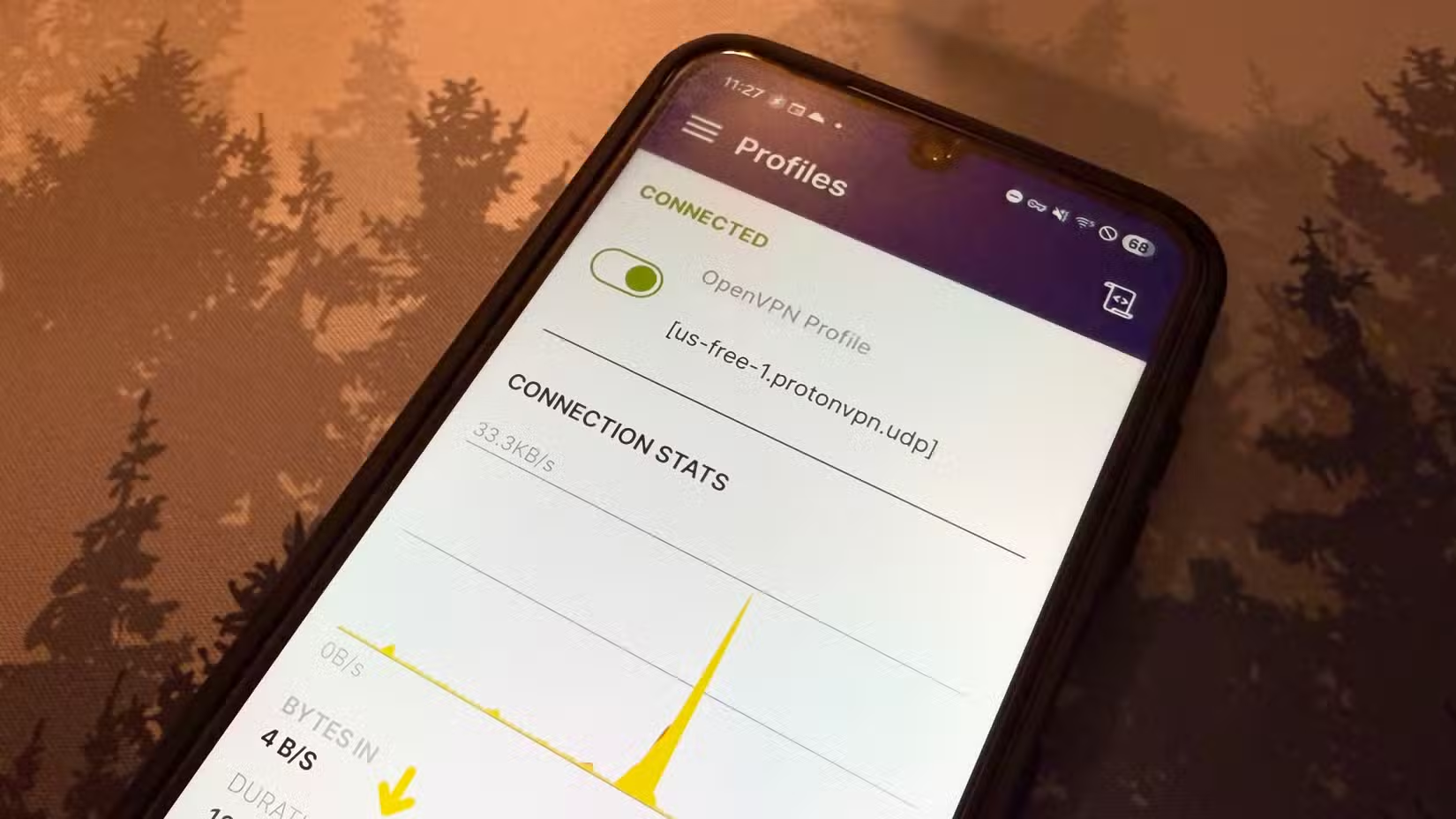
The fact you can’t use it as a regular VPN doesn’t mean that it isn’t useful. To get it running and working, hop into the router’s web interface or companion app, usually reached by typing the router’s local IP address into a browser or opening the manufacturer’s app while connected to the home Wi-Fi. From there, the VPN server section walks through picking a protocol, generating credentials, and, in most cases, enabling dynamic DNS if it isn’t already active. TP-Link, Asus, and Netgear routers all include this as a guided process rather than raw configuration files, though the exact menu names differ between brands and firmware versions.
The resulting configuration file or QR code then gets loaded into a VPN client app, such as the official WireGuard or OpenVPN Connect apps, on whichever device needs remote access. Multiple devices can typically be provisioned this way, each with its own set of credentials that can be revoked individually if a phone is lost or a laptop is retired.
The practical payoff shows up in a handful of common scenarios. Someone traveling can securely reach a home media server or a NAS drive without opening it directly to the internet. A user on an untrusted public Wi-Fi network, like an airport or hotel connection, can tunnel back home and route sensitive traffic through their own network instead of trusting the local hotspot. Smart home devices that were never meant to be internet-facing, such as older security cameras or a local home automation hub, become reachable without punching individual holes in the firewall for each one.
The VPN hiding in plain sight on your router
That router VPN isn’t about hiding your identity online, it’s about safely extending your home network to you, wherever you happen to be. Once set up, it turns any trip or public network into a secure doorway straight back home.