
Switching to Ethernet was simultaneously the best and the cheapest network upgrade I’ve ever gotten. Simply ditching Wi-Fi for a cable is fantastic, and in most cases, it improves your connection tremendously.
But what if one Ethernet-related setting actually makes your PC feel slow? That can happen, and after some digging, I found the culprit.
Speed & Duplex decides how fast your Ethernet link actually runs
Auto Negotiation is doing more than you might think
If you’ve never heard of Speed & Duplex, I won’t blame you, but this is actually a pretty important setting. It controls how your Ethernet adapter talks to the device at the other end of the cable. Most of the time, that’ll be your router.
The “speed” part of the name determines whether that link runs at, say, 100Mbps, 1Gbps, or 2.5Gbps. Duplex, on the other hand, decides whether data can travel in both directions at the same time. It shouldn’t surprise you that modern Ethernet usually uses full duplex.
The reason I said that if you’ve never heard of this setting, I won’t blame you, is that it’s pretty niche. Under normal circumstances, you shouldn’t have to choose any of this yourself, and that’s because of Auto Negotiation, which lets your PC’s network adapter and the router/switch compare what they both support and agree on the best compatible link speed and duplex mode. It’s not much unlike what USB cables and ports do.
To check this setting for yourself in Windows, go to the Device Manager, then expand network adapters. Right-click your Ethernet adapter, and choose Properties > Advanced. Then, dig for Speed & Duplex or a similarly named setting, and select Auto Negotiation.
99% of the time, Auto Negotiation is exactly what you want. This usually isn’t the case of needing to tweak something manually, and forcing your connection to 1Gbps or 2.5Gbps doesn’t make it faster if the connection (the entire connection, hardware and all) isn’t prepared to handle it. Worse yet, doing so can actually mess things up instead of helping.
The interesting thing is what happens when Auto Negotiation doesn’t land on the speed you expected, and that’s why this setting is worth checking. That’ll be your first sign to dig deeper.
A 2.5GbE PC can still end up crawling along
You don’t want to describe your connection as “crawling,” right?
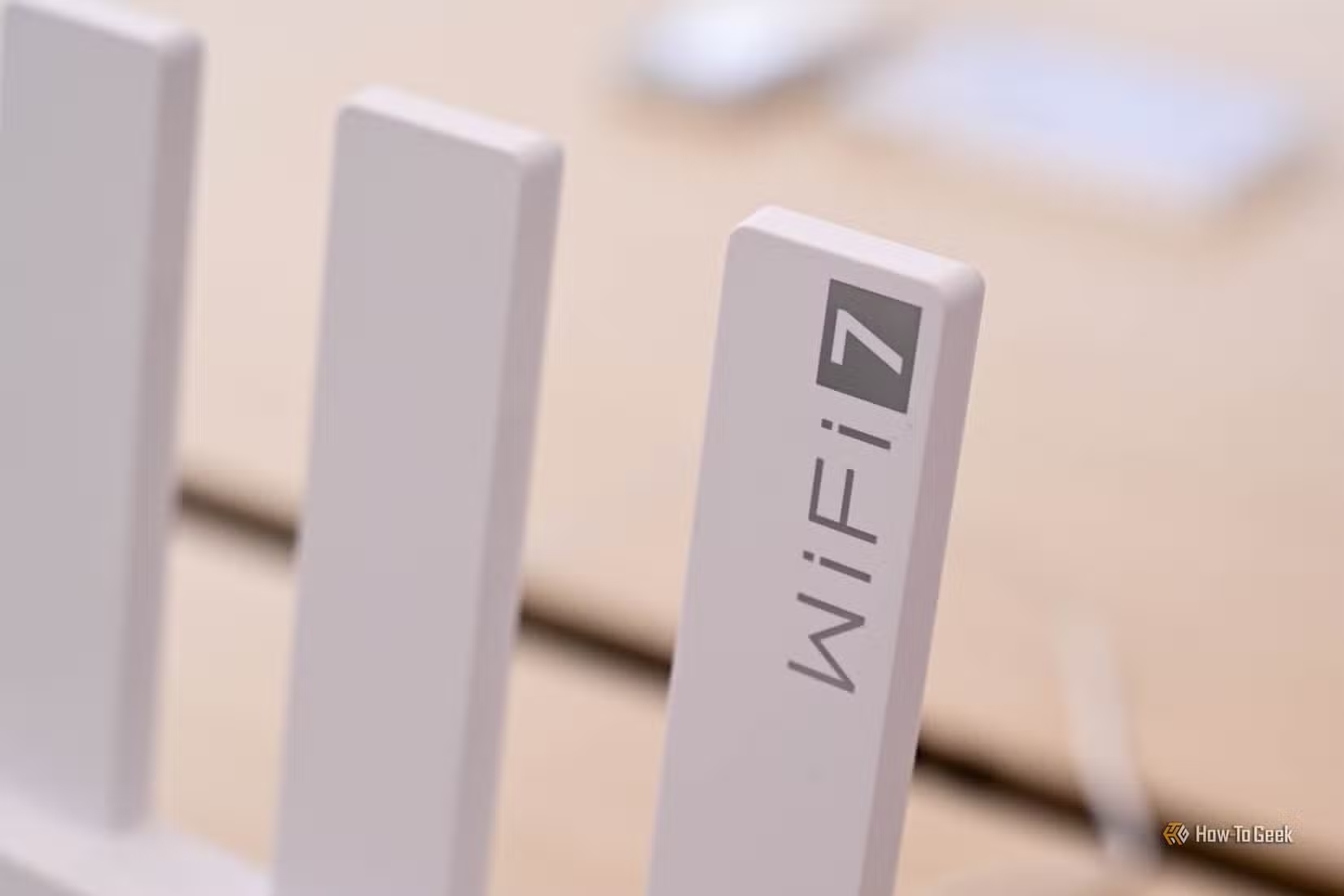
So, what does Auto Negotiation have to do with your connection feeling slow? Quite a lot, because the speed it negotiates is the one your Ethernet connection actually runs at, so if something goes wrong along that whole line, your internet might feel incredibly sluggish.
First, some numbers. A 2.5GbE connection tops out at 312.5MB/s, and 1Gbps has a raw ceiling of 125MB/s. Meanwhile, 100Mbps crawls along at around 12.5MB/s before overhead. So, if something in the link causes your network adapter to negotiate down to 100Mbps, you’re missing out on so much internet speed you might as well hop in a time machine back to 2003.
Such a slowdown is going to reverberate throughout your entire connection, unfortunately. Large downloads, streams, gaming—all of that stuff is majorly affected when suddenly the internet speeds you were meant to have just aren’t there. Even with a fast PC, most tasks will crawl along at a snail’s pace.
There’s a fix, of course.
Don’t fix it by forcing the biggest number
That doesn’t actually help
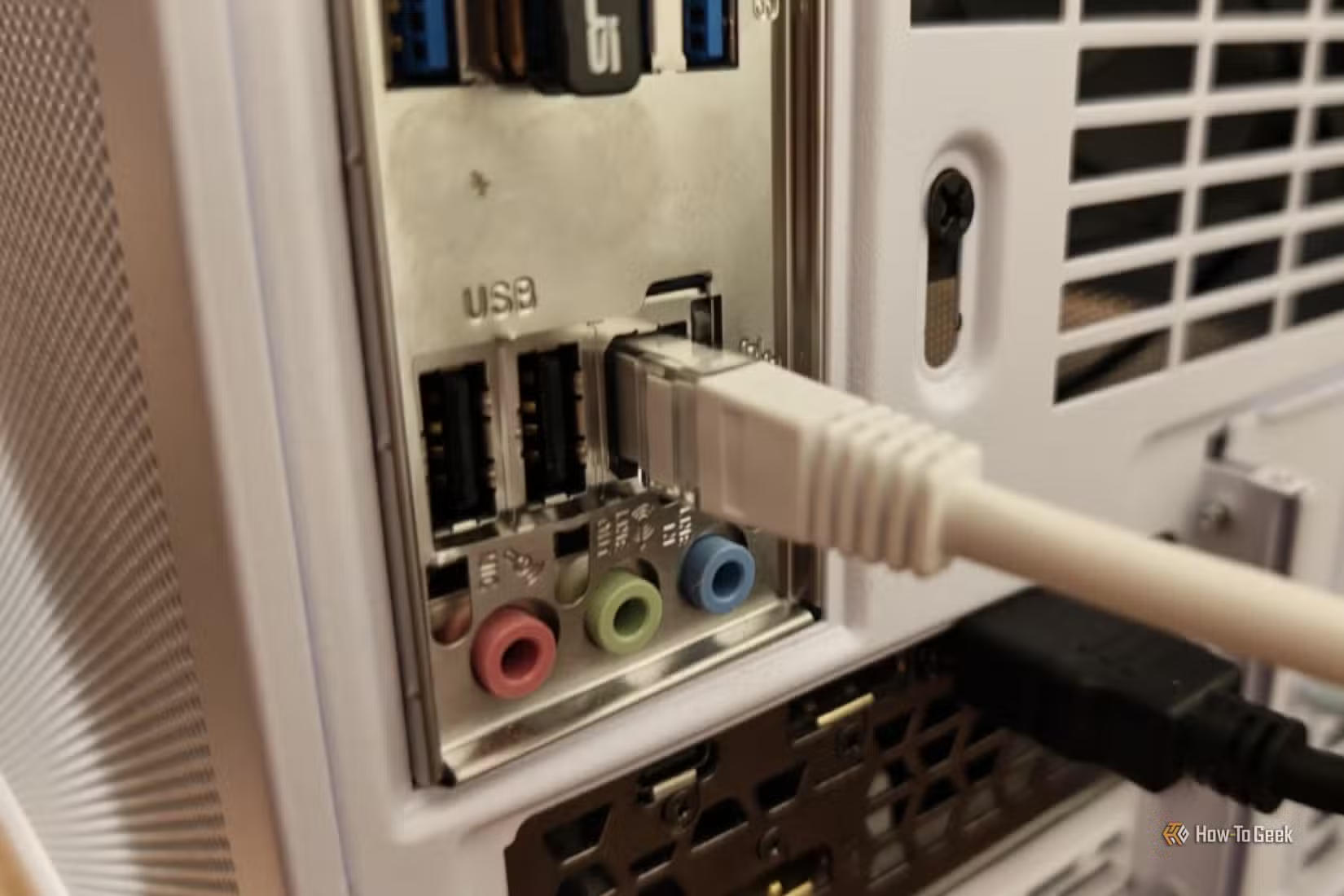
Given what we now know about Speed & Duplex, your first instinct might be to go in there and force the highest number you possibly can, but I’m here to tell you not to do it.
Auto Negotiation exists specifically for the purpose of two devices agreeing on a configuration that actually works on both ends. If you end up picking something that works on one end but not the other, it’s not like one of the devices can force the other to just somehow learn how to negotiate at a higher speed.
Doing this means that at best, you gain a big fat zero, zilch, nothing. At worst, the link can become unstable or fail to come up properly. So, if Auto Negotiation has landed you at 100Mbps even though you expected gigabit Ethernet or better, it means it’s time to investigate instead of forcing it to do what you’d like to see.
Check what speed was actually negotiated
Link speed and internet speed are not one and the same
Forcing it isn’t the answer, then what is? You just need to check what Auto Negotiation actually gives you. In Windows, you’ll find this under Settings > Network & internet > Ethernet if you look for link speed. You can also check your adapter’s status in the Control Panel.
If you have a gigabit or 2.5GbE connection but Windows reports a slower link, well, there you go.
One thing to note: Don’t confuse that number with your actual internet speed. Link speed only talks about the connection between your PC and the next device on your local network, which is most commonly a router. Your ISP determines how fast you can actually reach the internet, so that factors into the equation, too.
If Auto Negotiation is disappointing, check the cable
The setting may just be shining a light on the real problem

On rare occasions, Auto Negotiation may indeed be the problem, in which case you can always force the link to follow a certain speed—but this will only work if all the devices involved, including the cable itself, can support that speed and are working properly. If not, you just got a pretty important hint as to where to look for the troublemaker.
The first thing I’d check is the Ethernet cable itself. Unplug it and reseat both ends. Then, swap it out for a different cable that you know works perfectly well, and make sure it’s Cat5e or better.
There’s a good reason cables can mess with this at times. Gigabit Ethernet needs all four twisted pairs inside the cable, while 100BASE-TX can get by with only two. A damaged pair can leave you with a connection that technically works, but doesn’t perform the way you’d think.
A fast PC is only as fast as its slowest link
Any PC, aging or otherwise, is only as fast as its slowest link. If something is bottlenecking your connection, Speed & Duplex may expose it. Tweak the setting as needed, but if you’re uncertain about the hardware’s capabilities, you might have to start there first.