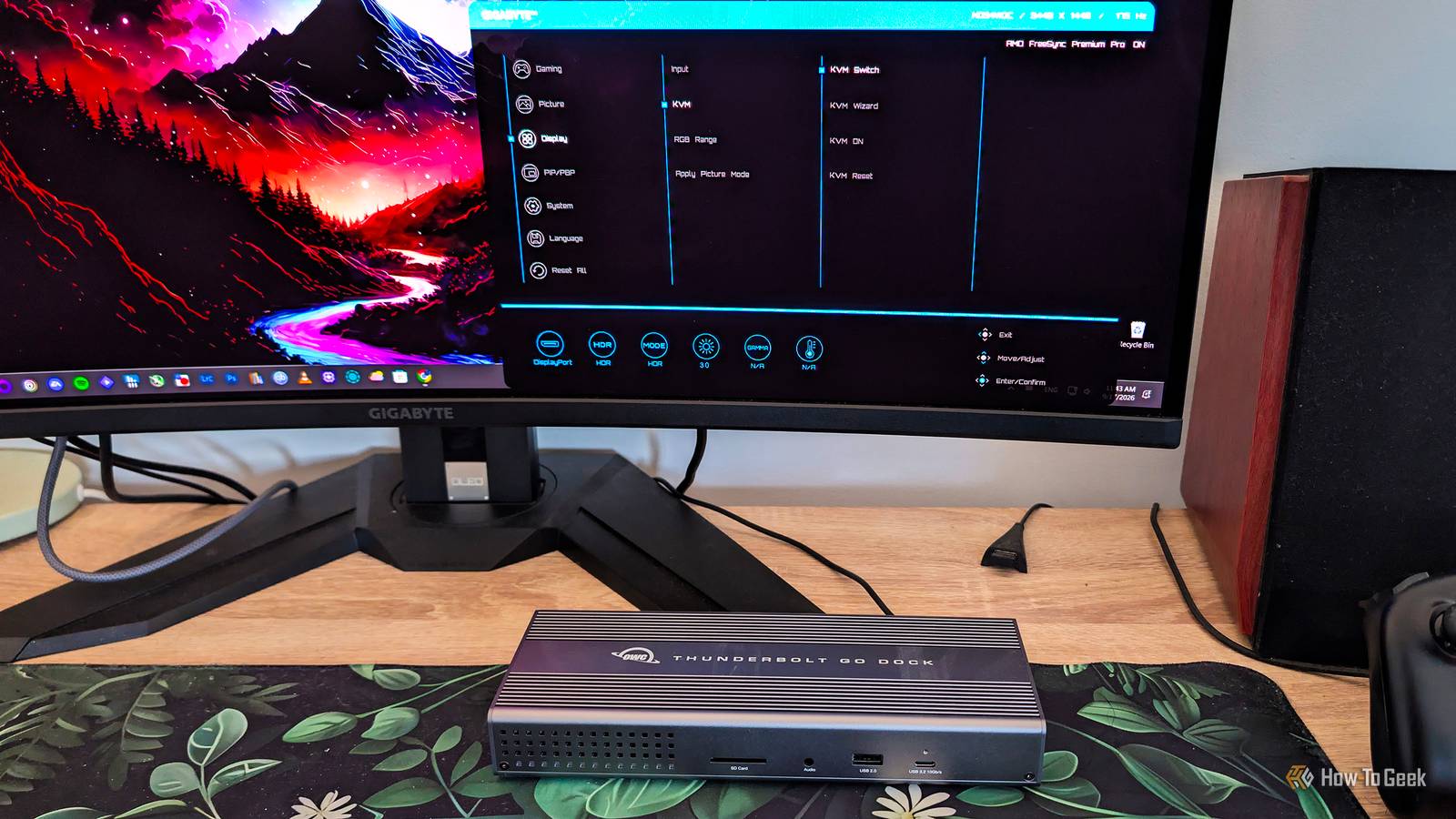
USB docks and KVM switches are more like two different coins than two sides of the same coin. They can both upgrade your desk setup, but they do it in quite different ways. Let me walk you through their differences and, as someone who uses both, help you decide which one is right for your needs (hint: they aren’t mutually exclusive).
USB docks are all about boosting your computer’s connectivity
They’re usually for laptops and handheld PCs, but you can use them with desktops, too
USB docks, also known as USB docking stations or USB hubs, come with a bunch of different ports, including USB ports, video outputs (HDMI and DisplayPort in most cases), Ethernet ports, audio jacks, SD card readers, and more. Their main purpose is to plug into one of your computer’s USB ports and turn that single port into a hub teeming with connectivity options.
USB docks usually use a USB-C port for this, and they come in two types. You’ve got cheaper docks that work with USB 3.2 Gen 1 and Gen 2 ports, which top out at 5Gb/s and 10Gb/s, respectively. On the other hand, you’ve got pricier models that use Thunderbolt or USB4 connections. They tend to feature more ports and more capable video outputs, since Thunderbolt 3, Thunderbolt 4, and most USB4 ports offer 40Gb/s of bandwidth. The most expensive options out there support Thunderbolt 5 and its beastly 80Gb/s bandwidth.
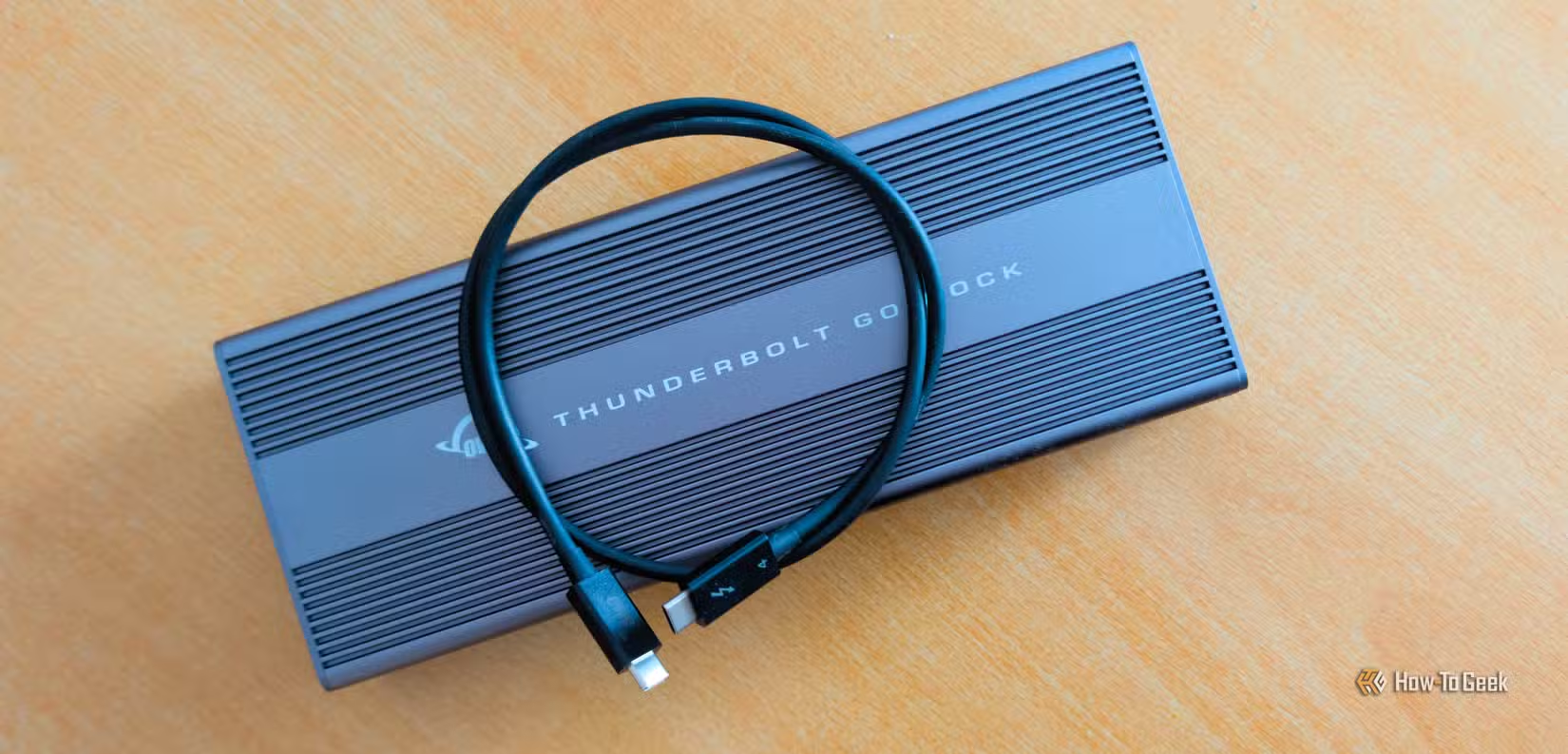
Some docks draw power from your PC to run themselves and any devices connected to them, but you’ve also got powered docks that plug into a wall outlet. These can power not only your laptop or handheld PC, but also the devices plugged into them. For instance, I’ve got a powered Thunderbolt 4 dock that I charge my phone, mouse, earbuds, and other devices with, since it not only delivers up to 90W to the connected PC but also includes two Thunderbolt ports that deliver up to 15W of power each.
While USB hubs are commonly paired with laptops and handheld PCs, nothing stops you from using one with your desktop PC. In fact, I use my Thunderbolt docking station with a Mac mini. I also plan to get another USB-C dock, an unpowered one this time, and connect it to my Windows desktop’s 10Gb/s USB-C port since I need more USB ports, and I also want an easily accessible SD card slot that sits on my desk under the monitor.
Tower desktop PC owners aren’t limited to USB docks
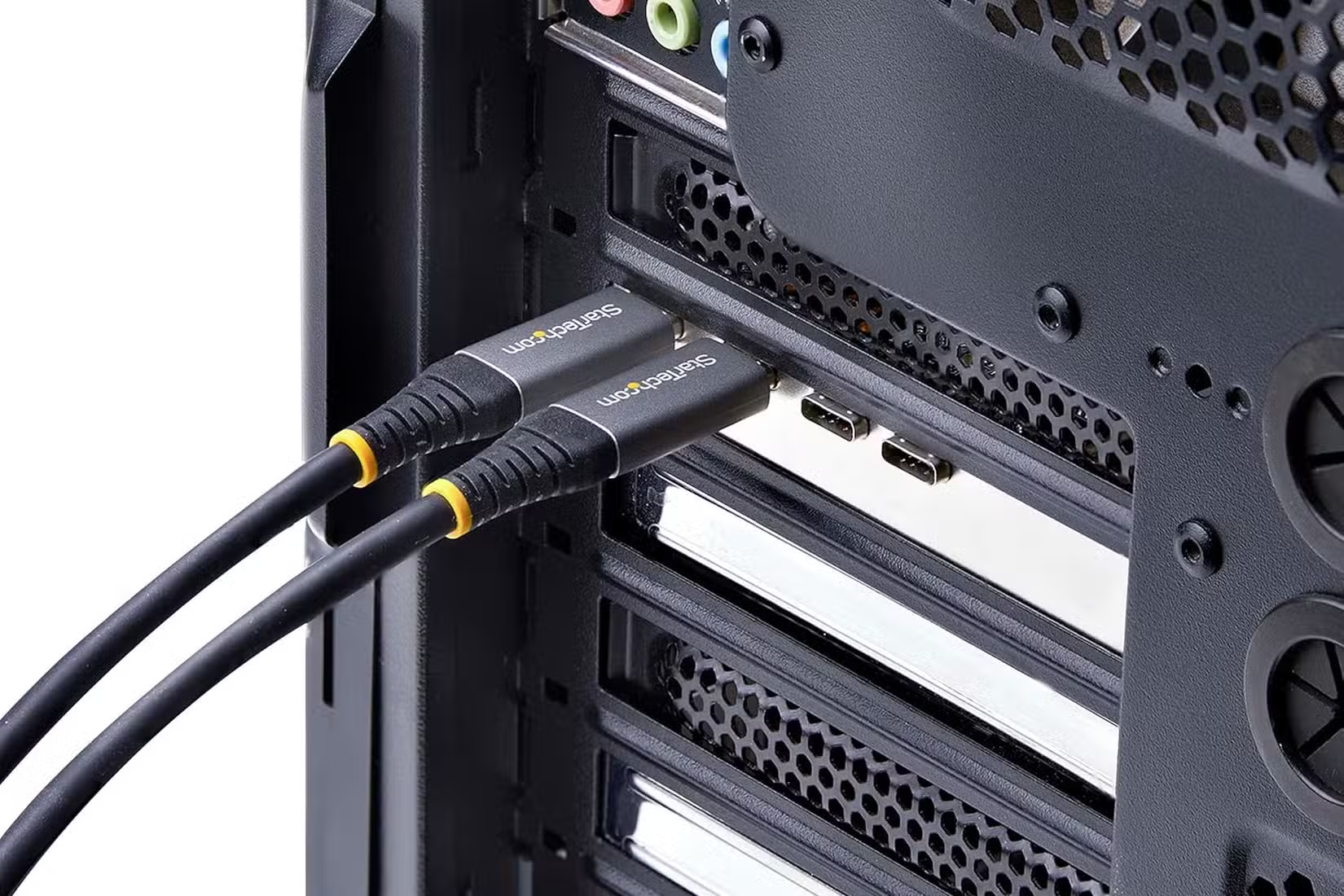
If you own a laptop, a handheld PC, or a Mac desktop, you’re limited to USB docking stations. But if you own a tower desktop with a regular desktop motherboard, you can add more USB ports with a PCIe card or a USB adapter that connects to your motherboard’s internal USB headers.
The former installs in a PCIe slot, with its ports sitting on the rear panel of your case. The latter can either be mounted on the rear panel or come as front-panel adapters you can install in a 5.25-inch bay, if your case has one. They aren’t as simple to install as a regular USB dock, but they can be handy if you need more USB ports and don’t have a free high-bandwidth USB port to plug a dock into. You’ll just need a free PCIe slot or USB header.
A KVM switch serves a different purpose
One keyboard, one mouse, one monitor for multiple PCs
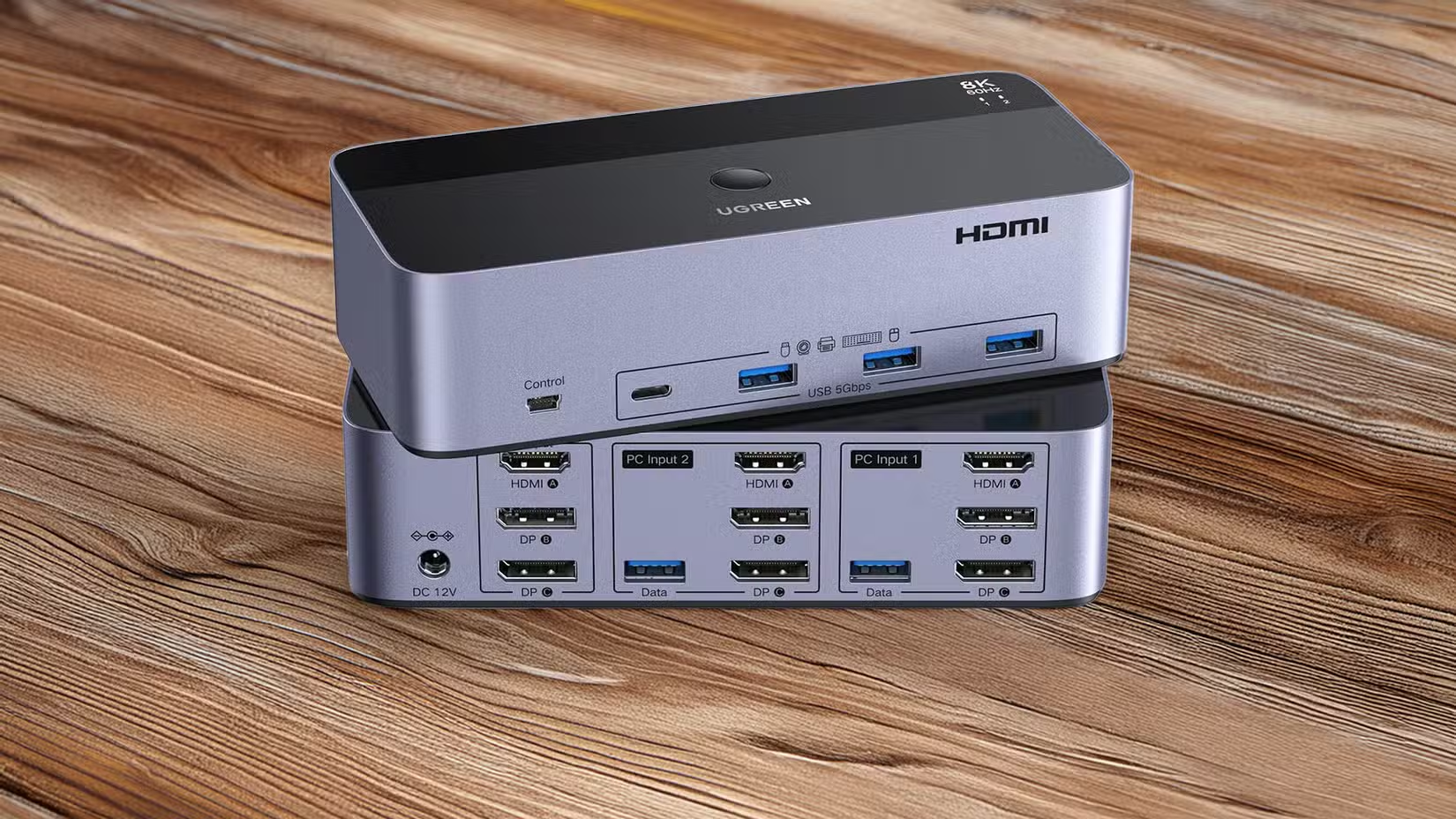
On the other side of the street, you have KVM switches, which serve a different purpose. Instead of expanding your computer’s connectivity options, a KVM switch lets you use a single monitor and a single set of peripherals with multiple computers. The name says it all: KVM stands for keyboard, video, and mouse.
They generally come with multiple sets of inputs (one set for each PC, typically one or more video inputs and USB ports) and a single set of outputs for connecting your monitor (or multiple monitors, if the KVM switch supports them), keyboard, and mouse. Once everything’s connected, there’s a single button you can press to switch the monitor and peripherals from one PC to another.
While you used to only find standalone KVM switches, nowadays many monitors come with built-in KVM switches. A typical setup includes a couple of USB ports for your keyboard and mouse, plus two ways to connect your PCs. One PC connects to the monitor’s HDMI or DisplayPort input, along with a USB upstream cable (typically USB-B) for the peripherals.
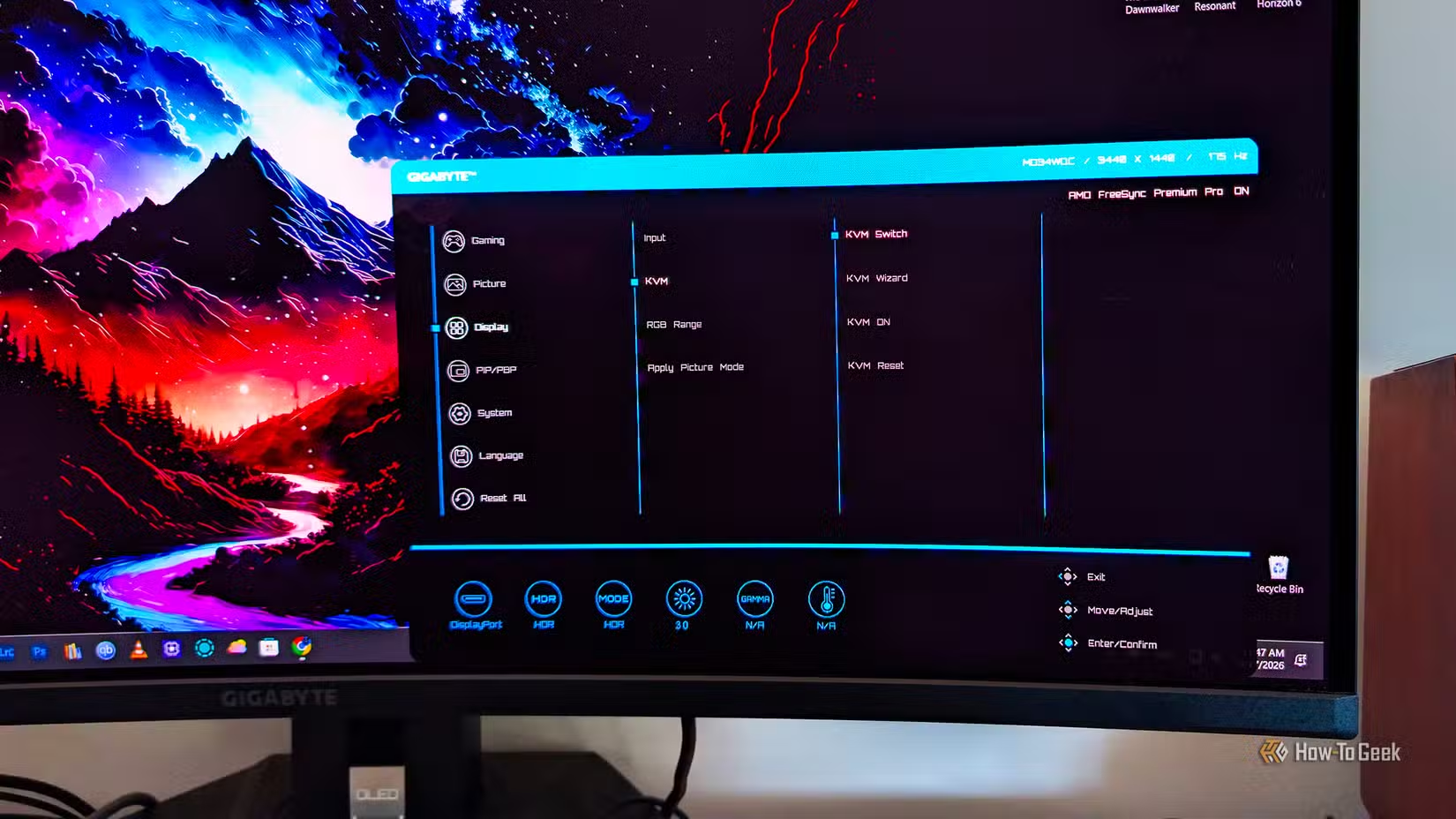
The second PC connects through the monitor’s USB-C port, which handles both video and USB over a single cable. In other words, if your monitor has a built-in KVM switch, you’ll plug one PC into the HDMI or DisplayPort input and use the USB-C port for the other, which means one of the two computers has to pack a USB-C port with video support.
USB dock vs. KVM switch: What’s the actual difference?
They serve different purposes and can complement each other
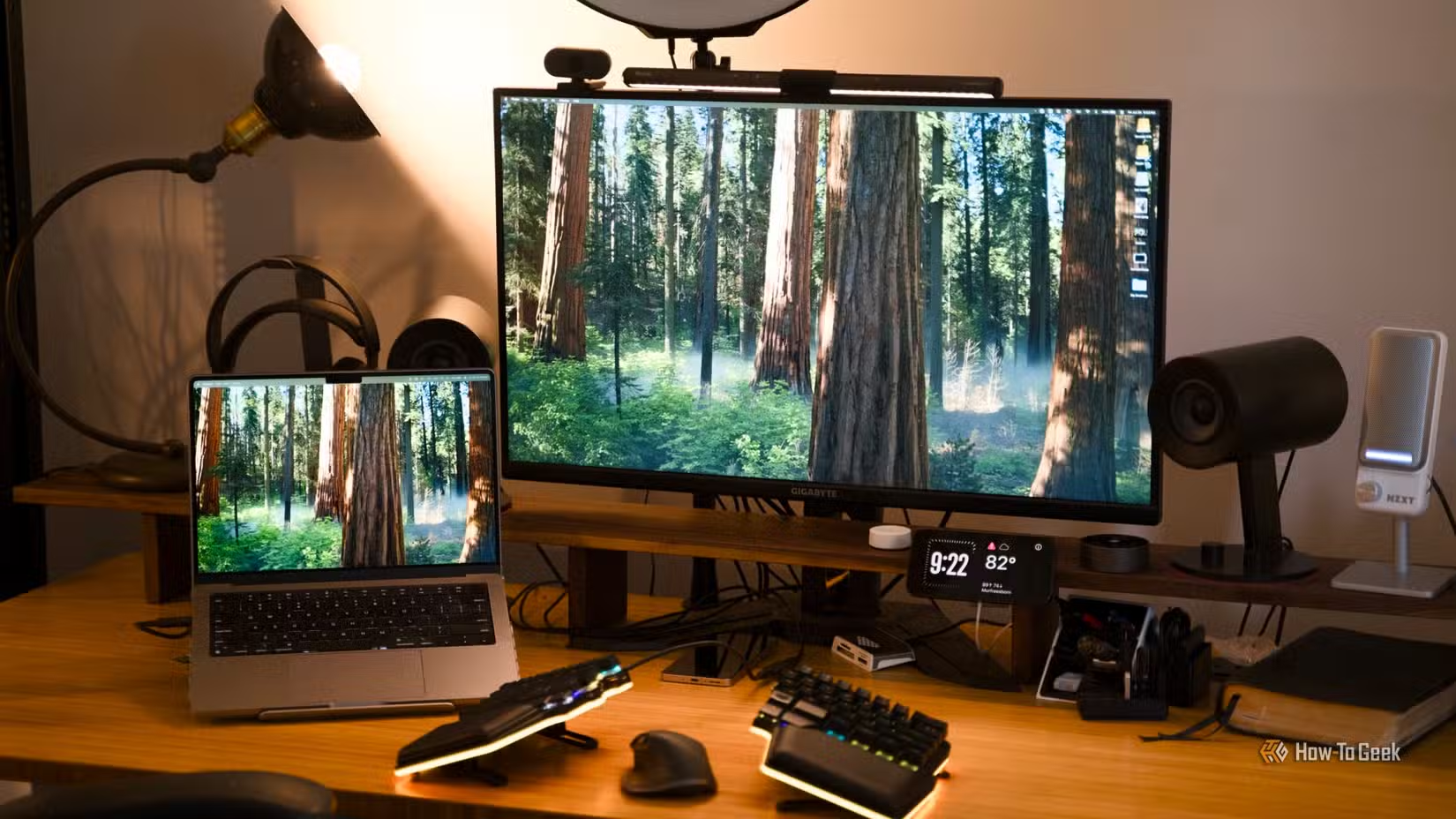
While some KVM switches also come with audio ports and a few extra USB ports beyond the two peripheral ports you can use with both PCs, a KVM switch isn’t a replacement for a USB dock. Even a KVM switch with more than two USB ports can, at best, provide your PC with a few extra USB ports and nothing else. At the end of the day, a KVM switch simply lets you use multiple computers with the same monitor (or monitors) and the same set of peripherals.
USB docks, on the other hand, plug into a single USB port and turn it into a connectivity hub with a bunch of extra ports. Also, since many modern laptops only have USB-C video outputs, they can’t connect to most KVM switches without a dock or adapter, because most KVM switches only come with HDMI and DisplayPort inputs. A USB dock can plug into that USB-C port and let you connect the laptop to any monitor or KVM switch, while also packing a bunch of extra ports you can use as you please.
|
USB dock |
KVM switch |
|
|---|---|---|
|
What it does |
Adds ports |
Shares peripherals |
|
Connects to |
One computer |
Two or more computers |
|
What you connect to it |
Monitors, Ethernet, SD cards, USB devices, and more |
Keyboard, mouse, monitor, sometimes audio and USB devices |
|
Best for |
Laptops and handheld PCs |
People with multiple PCs |
In other words, you don’t have to limit yourself to one or the other. If you need both, you can use them together and get the best of both worlds. The dock lets you connect your laptop to a KVM switch with a regular HDMI cable, or to a monitor with a built-in KVM switch with a USB-C cable, while still giving you a bunch of extra ports for peripherals, SD cards, speakers, Ethernet, and more.
I use both, and I’m never going back
While I’d managed to use my Windows desktop and Mac mini with a single monitor and a single set of peripherals without a KVM switch (my mouse and keyboard both support Bluetooth), getting a monitor with one built-in really simplified my setup. Both my mouse’s wireless dongle and my keyboard’s cable are now plugged into the monitor, and they magically switch between the two PCs with a few button presses. The only thing I still have to do is toggle my speakers between wired and Bluetooth mode whenever I change computers.
On top of that, I use a Thunderbolt docking station with the Mac mini, and I love it. It’s made the mini even more versatile than my desktop PC, since the dock comes with an SD card slot and multiple Thunderbolt ports I can use to charge my phone, mouse, wireless earbuds, and other gadgets. If you ask me, combining a USB dock and a KVM switch is the way to go, and I’m never going back to my old desk setup.