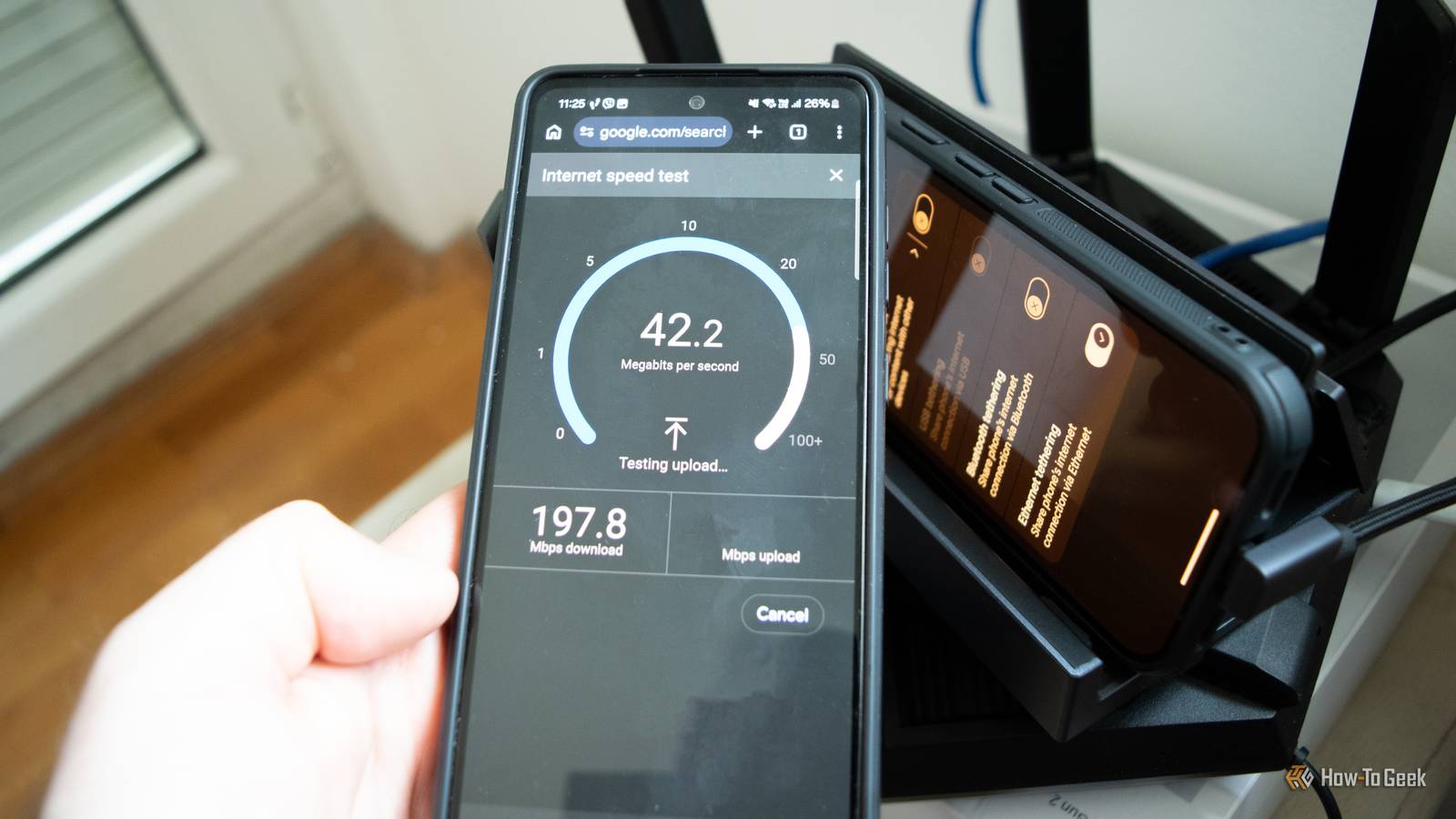
If you feel like your internet is playing up, what’s the first thing you do? A lot of us reach for the same tool: a speed test. Those things catch more than just slow internet; they also note your latency, and if there’s packet loss, you’ll see it because the speed test will take ages to complete (or it won’t complete at all). And as long as it shows a number within our expectations, we shrug and assume the Wi-Fi is just having a bad day.
A simple speed test, however, is not something anyone should be judging their whole network by. Even with a half-dead Ethernet cable, for example, your speed test can still give you a good result. If you actually want to test your setup, a bandwidth test is the better place to start.
A speed test only ever checks your internet, not your cable
It taps out the second you hit whatever your plan is selling you
All a speed test does is measure the path from your device to a server on the internet, and it’s completely capped by whatever internet plan you have. Ethernet cables, however, can move much faster than most plans, so a speed test will likely never stress it.
If you do end up with a low number from a speed test, guessing the culprit can be pretty difficult. It could be your ISP, a VPN, a browser extension, a busy test server, congestion, an old router, or something else entirely.
It’s also worth going around and checking your Ethernet cables, since you could be dealing with something like a broken locking clip, a sharp bend, or a chewed cable. If you have pets, that can definitely happen; I still remember years ago, when my (then a puppy) dog chewed up my Ethernet cable in a fairly hidden-away spot. It took me a while to notice.
There are honestly so many things that can cause a bad speed test result. It’s not always your ISP (although in my case, it often is, but I’m unlucky when it comes to ISPs).
The sneaky part is how a bad cable actually fails
Gigabit needs all four pairs, and losing one won’t kill the connection
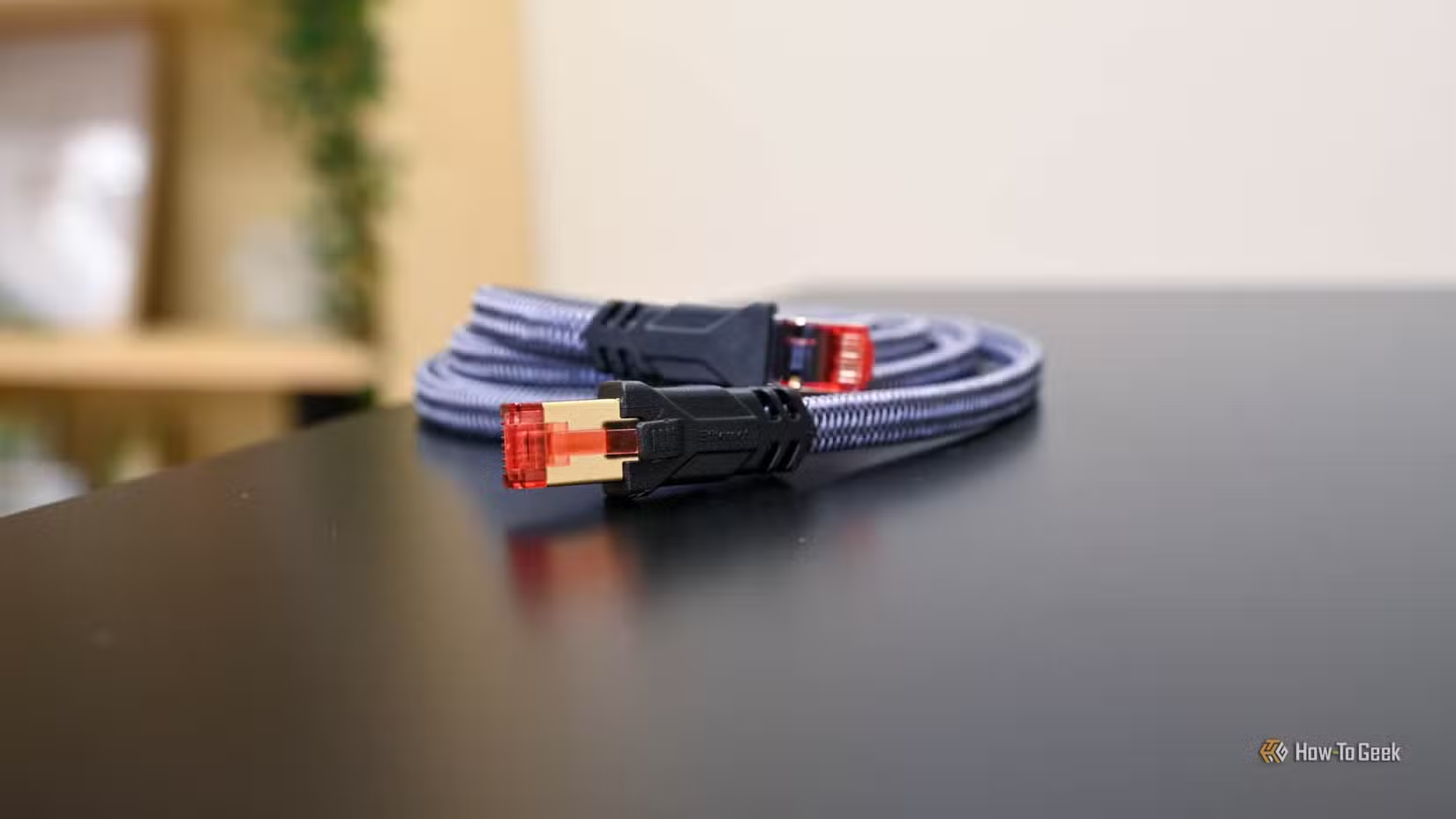
An Ethernet cable has eight wires inside, arranged as four twisted pairs. Full gigabit (the 1000BASE-T standard) needs all four of those pairs in working order, while older 100Mbps Fast Ethernet only needs two.
So, if one pair gets damaged, your link can drop from 1Gbps down to 100Mbps but keep working all the same. Nothing disconnects, nothing throws an error, and the connection simply renegotiates itself down to stay stable.
If things go really wrong, your adapter can even negotiate itself down to 2003-era speeds without you noticing a thing.
The actual test: check your link speed, then run iPerf3
One number shows you the ceiling, the other shows you what you’re getting
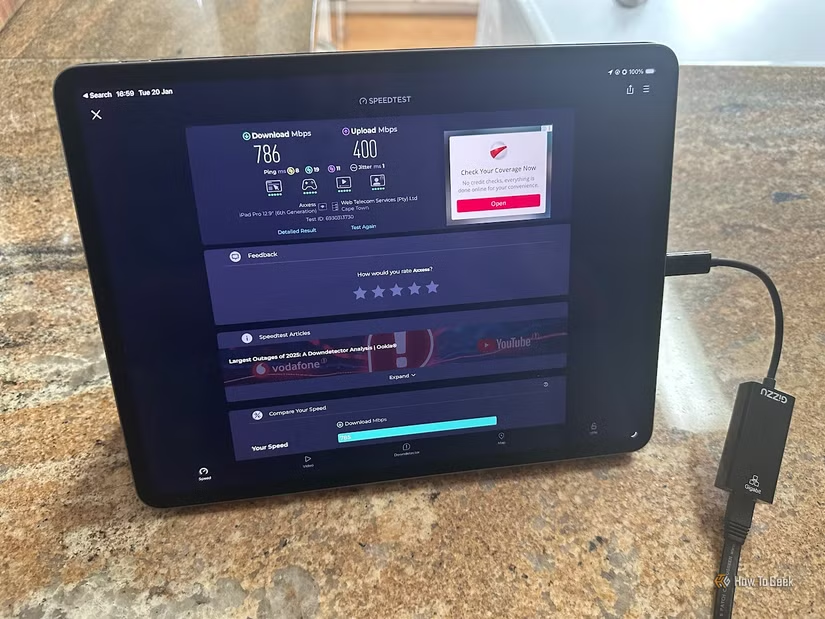
The first thing to check is your link speed, also called the negotiated speed. On Windows, head to Settings, then Network & internet, then Ethernet, or just run Get-NetAdapter in PowerShell. If your PC has a gigabit port but the link only shows 100Mbps, then the problem is somewhere in your wiring rather than your internet. (Potentially. Maybe. Network troubleshooting is such a hassle, honestly.)
Next, try out this great tool: iPerf3. I use it a lot. It’s a free command-line utility that measures raw speed between two devices on your own network, with the internet completely out of the picture. Instead, it shows you the true ceiling of your cable, port, and network card.
Install it on two devices (brew install iperf3 on Mac, Scoop or winget on Windows, apt on Linux). On one machine, run iperf3 -s to make it the server, then on the other, run iperf3 -c followed by the first machine’s IP address.
A healthy cable should give you around 900Mbps or more, so if you’re crawling at under 100Mbps instead, you have discovered a faulty cable. Tack on -R to flip the direction, -t 30 for a longer run, or -i 1 to catch intermittent drops, and keep an eye on the “Retr” column, since a pile of retransmits usually means a flaky physical link.
When the test finally points at the cable
Swap first, tester second, replace third
So, if these tests come up with bad results, the fix is pretty straightforward.
First, verify the results by swapping in a short, working cable, and run the test again. If the numbers jump up, that cable is definitely the problem. It’s the same trick I use for a cable that might simply be too long, where the signal degrades just enough to force those same slowdowns.
A cheap cable tester (the $10 kind) is a good next step, since it instantly catches broken wires, shorts, and miswires. Just know it won’t flag subtler issues like crosstalk, so a cable can technically “pass” and still choke at gigabit.
As for replacements, Cat6 should be the default for anything new, but there’s definitely no need to panic-buy Cat8 for a normal home. Honestly, plenty of the Cat5e cables you already own are still perfectly fine for gigabit, as long as they’re in good shape.
The speed test isn’t useless, it’s just answering a different question
A speed test tells you if you’re getting the internet speeds you’re paying for, and that’s something we all need to check at one point or another. Your link speed and an iPerf3 run, however, answer a completely different question: “Is my own wiring quietly holding me back?” Nothing lasts forever, so at some point, those Ethernet cables will be the ones causing the problems.