
If you haven’t already guessed from the dollar amount and the distro’s logo, I’m talking about Omarchy. It’s the new Linux distro developed by DHH — the guy behind Ruby on Rails. Now, version one actually dropped back in June 2025, but it really took off with its fourth major release, Omarchy Quattro, released August 2026.
The project has raised over $18.7 million in funding, and every popular Linux YouTuber and website seems to be talking about it. It’s easily the biggest thing in Linux right now. Not to mention that it genuinely looks cool and futuristic. So I got my hands on it, played around with it for a week, and here’s what I think.
The core Omarchy experience
A hyper-opinionated Arch-based distro
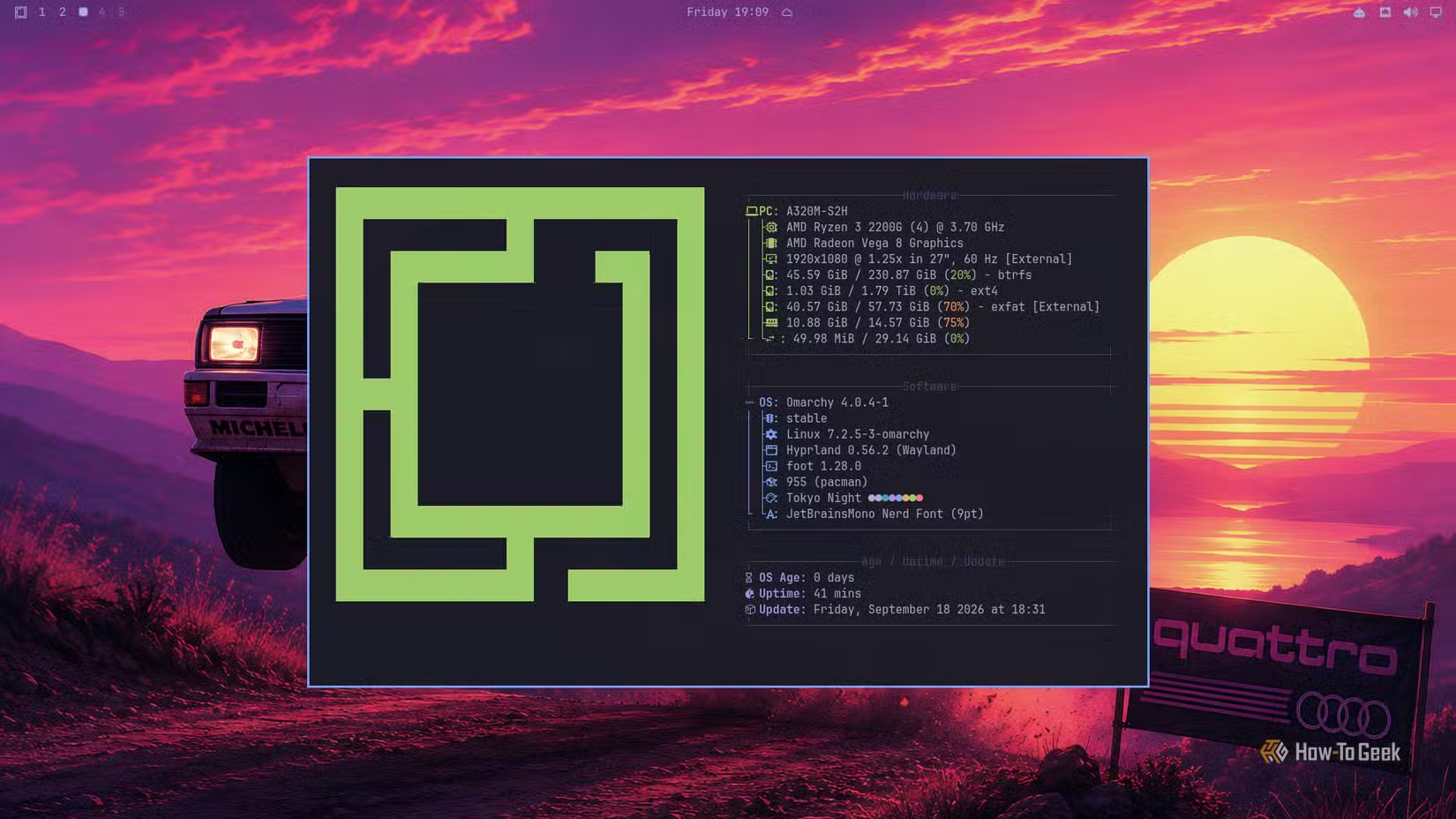
Omarchy is an Arch-based distribution designed with a focus on beauty, fun, and agentic use cases. It uses Hyprland as the window manager and Quickshell as the toolkit for building custom desktop interfaces. The Omarchy shell — everything you actually interact with — is built on top of Quickshell, and every interface element you see, from the top bar down, is a plugin. Omarchy ships with a wealth of well-designed plugins out of the box, but there’s also a third-party community of plugins. You can also build your own plugins if you’re a developer — or vibe-code one using Claude or ChatGPT.
The default layout gives you a top bar with quick settings on the right. These cover your display configuration, audio, and networking. There’s also an agent pop-up, since Omarchy supports deep integration with AI agents. I have Claude Code set up on my instance, and one tap shows me my session limits, weekly limits, and how much usage each Claude model has consumed.
The middle of the bar houses the time, date, and weather. Clicking the time gives you a quick calendar view. Just to the left of the date is a bunch of useful toggles: stay awake, silent notifications, nightlight, and reminders. You can also start screen recording or voice typing from here. Towards the left, you’ve got buttons to hop between your virtual desktops and open the app menu — which you can also open with Super+Space.
Omarchy uses Walker as its app launcher. It opens a small list in the middle of the screen where you can browse app categories, dig into system settings, and handle system controls like shutting down, restarting, or logging out. You can also type an app’s name to bring it up — and if the app isn’t installed, Walker can offer to install it for you, which is a nice touch.
Now that covers the interface. Let’s talk about the actual user experience.
Popular distributions like Ubuntu or Linux Mint, use traditional desktop environments with floating window management — think of paper on your desk that you can freely drag around and stack one on top of the other. Omarchy, on the other hand, uses Hyprland, which is a tiling window manager. Instead of letting you freely position windows, it automatically arranges them to fill the available space on your screen.
Open one window, and it fills the screen. Open a second, and Hyprland automatically rearranges them so they share the space side by side. Open a third, and it divides the available space again to fit all three windows. Nothing overlaps, so you can see the contents of every window at once. Of course, there’s a point where cramming more windows onto the same screen makes them too small to work with. That’s where virtual desktops come in. You can dedicate each desktop to a particular workflow and keep just two or three related windows open on each one.
Omarchy is a feature-dense distro
Bloat to some — godsend to others
Omarchy is filled to the brim with packages and applications — the installation ISO alone is 5.8GB. Beyond the usual system apps, you get Chromium, Discord, Docker, Kdenlive, LibreOffice, LocalSend, Moonlight, OBS Studio, Obsidian, Pinta, Basecamp, and Zoom — all installed by default.
There are even Chromium-based web apps for Google Maps, Google Messages, Google Photos, WhatsApp, and YouTube, alongside tons of themes, wallpapers, and even screensavers. Right after the first boot, Omarchy also asks you to set up your AI agent and supports almost every popular agent harness.
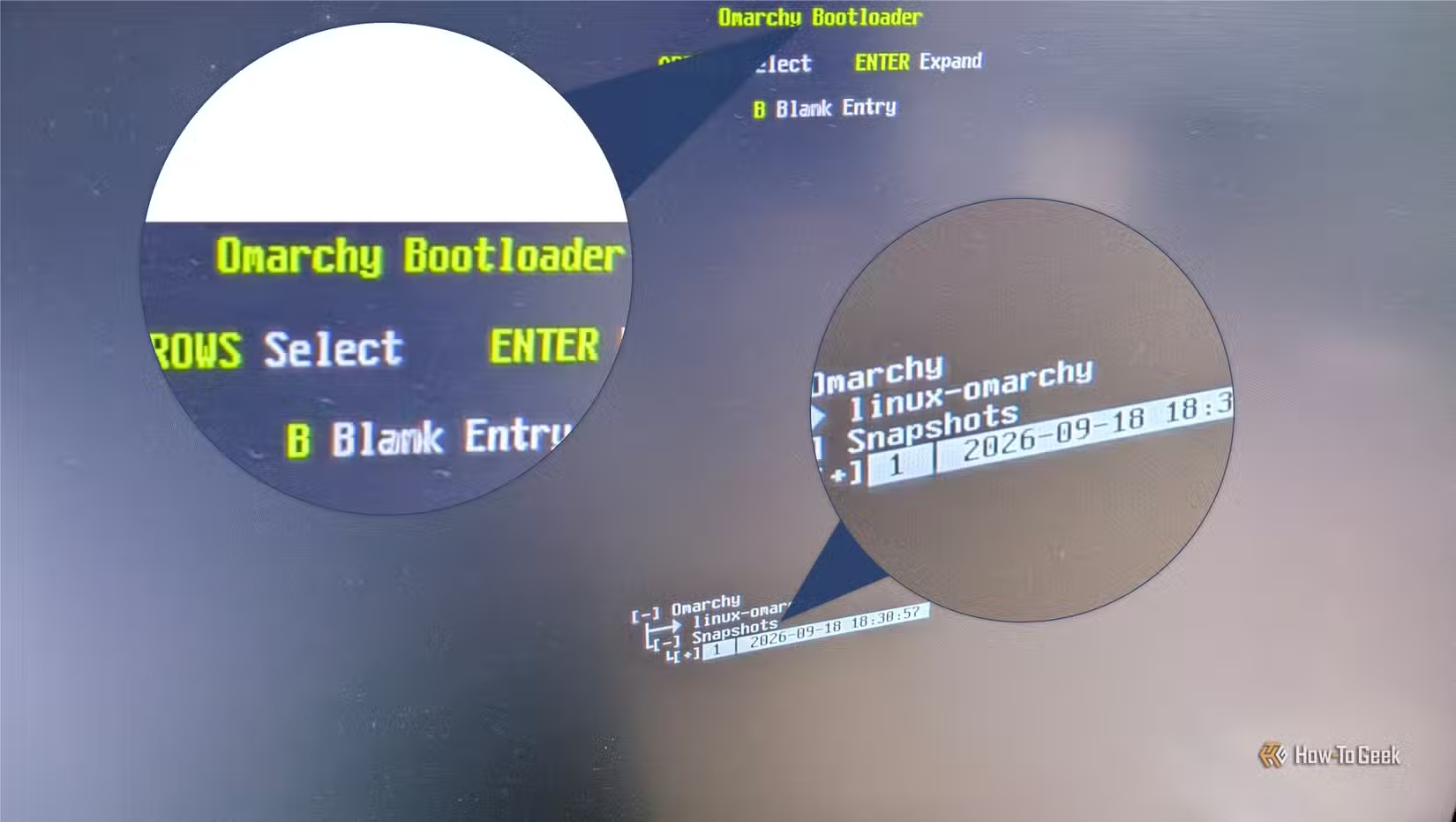
Other than this, like most popular Arch-made-easy distros, it uses the Btrfs file system paired with Snapper support. The distro is configured to automatically take full system snapshots (minus the home directory) before an update. This means that if anything goes wrong — whether during an update or some casual experimentation — you can revert to a previous working snapshot. This basically removes one of the biggest headaches of maintaining an Arch distro.
And if that’s not enough, it even comes with a built-in Windows VM. Granted, it’s not preinstalled; you’ll need to set it up yourself, but there’s a script in the Walker menu to streamline the process. It basically uses QEMU/KVM with dockur/windows — a GitHub project I only learned existed after using Omarchy. You get a fully functional, locally hosted instance of Windows 11 that you can access from your browser. The performance is decent for running a few casual apps, but it lacks GPU passthrough, so most heavier workloads won’t work.
To some Linux purists, all of this might seem like a lot of bloat, but I like it for two main reasons.
First, Omarchy runs extremely well despite everything it packs in. Unless you’re installing it on decades-old hardware, none of this is going to eat up enough resources to noticeably slow down your system. Second, you can delete whatever you don’t want — there’s even a dedicated section in the Walker launcher for removing the parts you don’t like.
I actually prefer this buffet approach when dealing with something new — whether it’s Linux or anything else. You get to see everything that’s available, try it all out, take your picks, and remove the rest.
The flip side is a blank slate with zero bloat, which really only makes sense for experienced users looking for a DIY project. Newcomers won’t necessarily know what to do with a completely bare platform. They’ll likely try to use it like tools they’re already familiar with — in this case, Windows or macOS — only to find that those workflows don’t map cleanly onto the new platform. That’s a recipe for disappointment.
Omarchy is far less likely to face that problem because it comes out of the gate showing users that there’s something different here.
Minimum system requirements and the OS installation process
Can it run on your system?
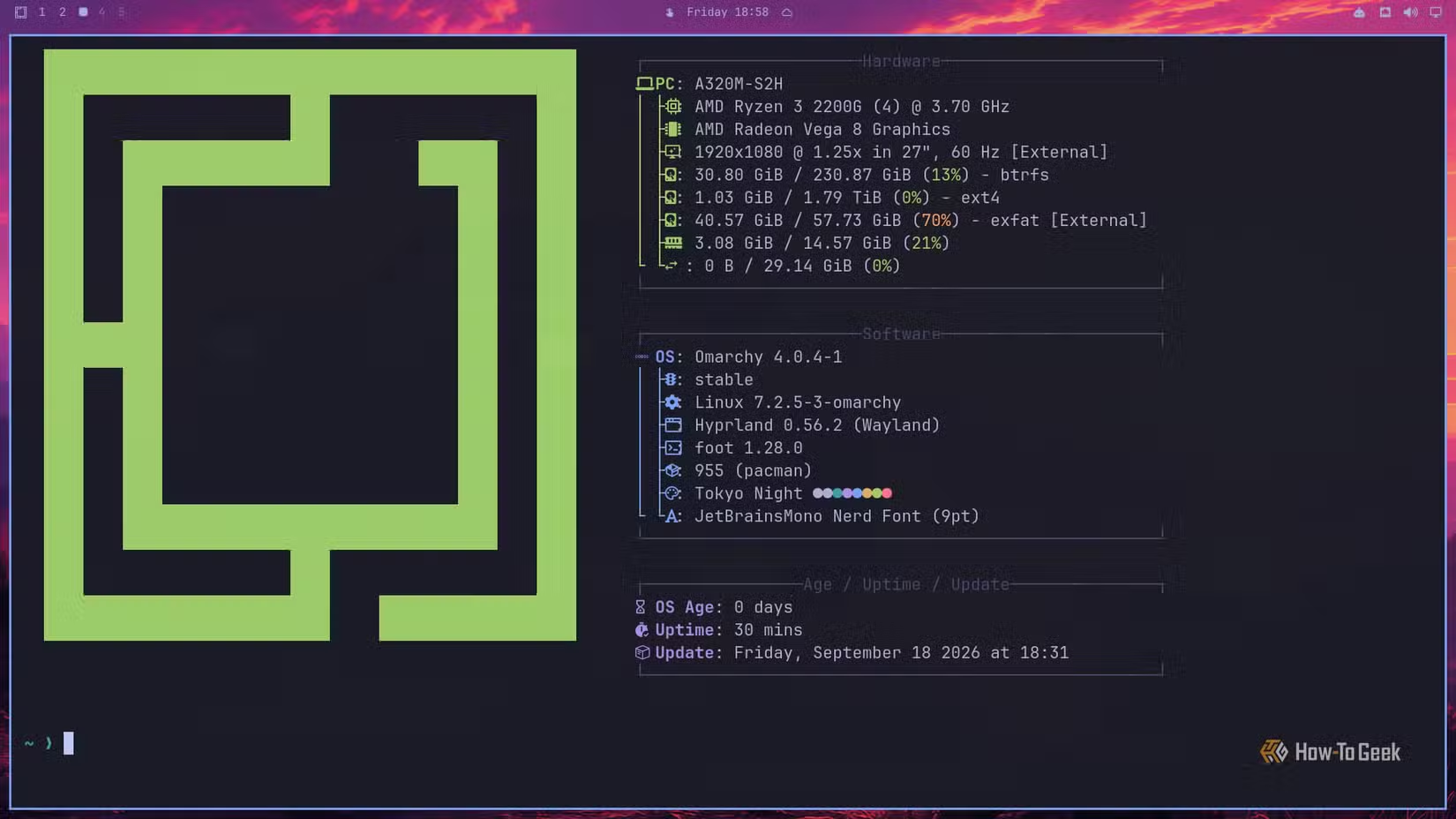
Omarchy has one of the most ridiculously streamlined installation processes I’ve seen on a Linux distribution — and I’ve tested dozens of them. If you’ve ever installed Ubuntu or Linux Mint, this’ll feel incredibly familiar and potentially even simpler. However, if you’ve never installed a Linux distro before, I’d encourage you to check out the official guide first.
Coming to the minimum system requirements, Omarchy doesn’t publish a conventional minimum CPU, RAM, or GPU specification. That said, on my fairly humble system — a Ryzen 3 2200G with 16GB of RAM and no dedicated graphics card — installation took barely two minutes, and it runs like a beast. Taking a cue from other Arch-based distros running Hyprland, I feel any entry-level PC from the past decade should run Omarchy just fine.
Also, if you don’t want to commit to a bare-metal install right away, Omarchy has a separate “Try Omarchy for Windows” app that lets you run the full Omarchy desktop inside a window. It completely bypasses the need to fiddle around with VirtualBox or create a dual-boot setup. The app downloads a prebuilt Omarchy image and launches the desktop in its own window. The performance is also genuinely usable, and it gives you a clean idea of what living with Omarchy is like before you decide to commit.