A few months ago, Microsoft released a new Windows 11 feature that provides a modern alternative to the good old System Restore. The feature is called point-in-time restore, and it should have already landed on your PC with a recent Windows update. Point-in-time restore can be useful because it creates a snapshot of your system every 24 hours, allowing easy recovery to a recent restore point.
The catch is that point-in-time restore is enabled by default, and it can use up to 20GB of storage space on a typical 1TB SSD with the default settings. Fortunately, you can not only greatly reduce its storage impact, but also disable it completely in just a few steps.
Point-in-time Restore is useful, but it can occupy tens of gigabytes on your boot drive
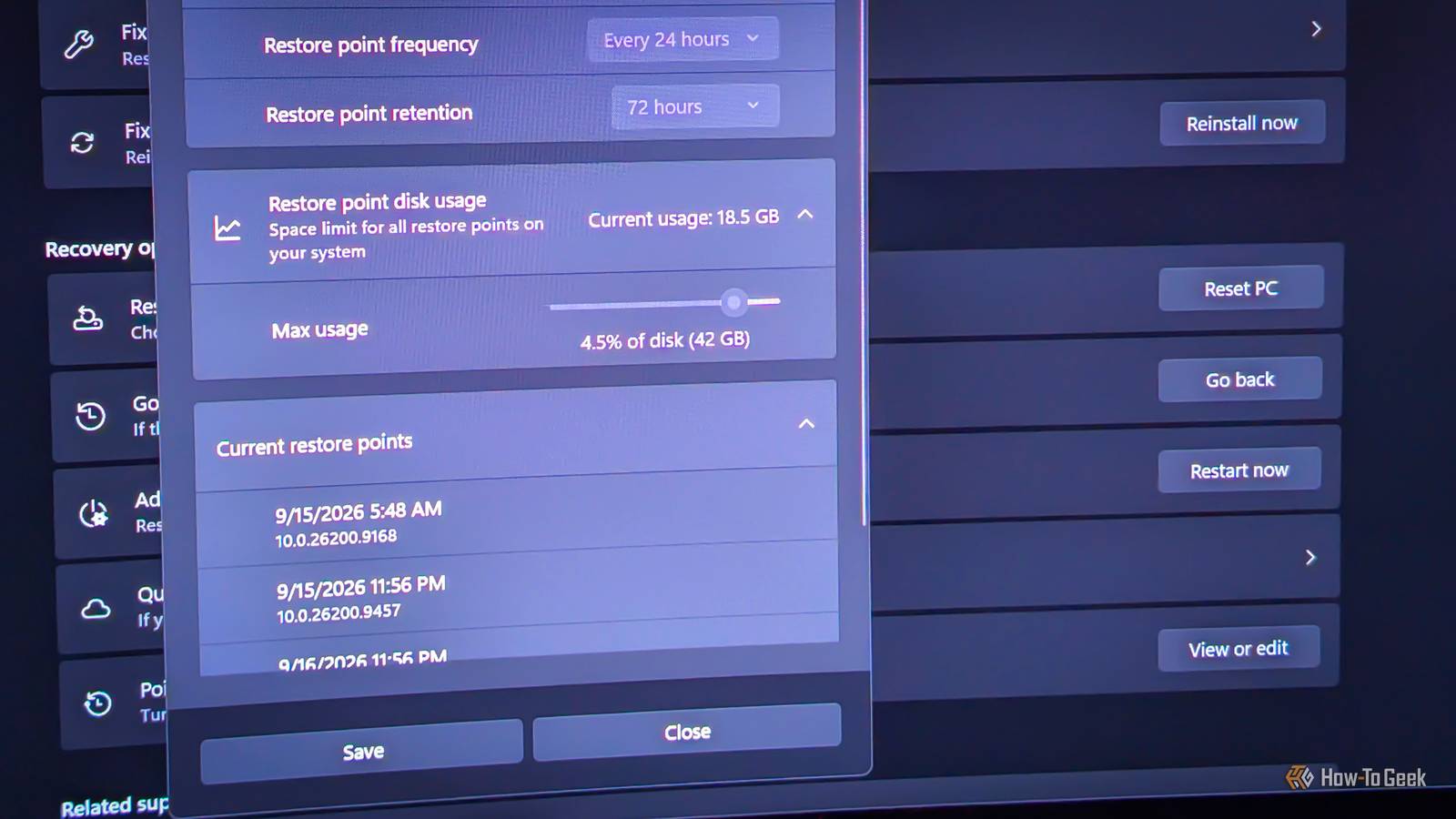
The feature uses more than 18GB on my SSD
As long as your boot drive — or system partition — is 200GB or larger, point-in-time restore should be automatically enabled on your PC. The feature started appearing on Windows 11 PCs in late June 2026 via a Windows update, and by now, most Windows 11 PCs worldwide should have received it. You can check whether you have it on your PC by opening Windows Settings -> System -> Recovery -> Point-in-time restore.
Point-in-time restore is a handy feature because it uses the Volume Shadow Copy Service (VSS), the same tech behind System Restore, to automatically create system restore points every 24 hours. These restore points stay on your PC for 72 hours before being deleted, and unfortunately, you can’t change the snapshot cadence or retention time unless you’re using an Enterprise version of Windows.
Since a restore point is created every 24 hours, you can rest assured that your Windows PC can be restored to a very recent state if things go south, even if your system doesn’t boot. That’s because point-in-time restore uses the Windows Recovery Environment (Windows RE), which launches automatically after your PC fails to boot a few times in a row.
While undoubtedly useful, point-in-time restore can take up a considerable amount of storage. Back when my PC received the feature, it only took 3.9GB of my storage space. Two months later, restore points are taking up more than 18GB, which is in line with the default 2% maximum usage limit, or about 19GB on the 1TB SSD I’m using. If your boot drive is larger, the usage can jump considerably.
For instance, if you’ve got a 2TB SSD, point-in-time restore could use up almost 40GB of space, which isn’t nothing to sneeze at. Luckily, you can take back a good chunk of that storage with just a few clicks.
You can reclaim that storage in a few ways
Either limit how much of your disk point-in-time restore can use, or turn it off completely
The easiest way to rein in the impact of Point-in-time restore on your SSD is to decrease the restore point disk usage. By default, it’s set to 2% of the disk space, and since the feature is enabled on any 200GB or larger boot drive, this means point-in-time restore will fill up 19GB of a 1TB SSD sooner or later.
To reduce the restore point disk usage, open Windows Settings and go to System -> Recovery -> Point-in-time restore, click the View or edit button, and allow Windows Settings to make changes to your device when prompted. Now locate the Max usage slider and set it to your preference.
You can go as low as 0.2%, which translates to 2GB on a 1TB SSD and 4GB on a 2TB drive. That’s still enough to keep a recent restore point around, so you can let point-in-time restore do its job without having to think about it.
If you already have a different backup solution set up, or simply don’t want to use point-in-time restore at all, you can disable the feature, and you should get all the storage back after 72 hours, when Windows deletes the last system restore point.
If you ask me, though, you shouldn’t flat-out disable it unless your PC is already covered by something else because 2GB, the minimum amount of space point-in-time restore can use, is a small price to pay to be able to restore your computer to a recent state if anything goes south.
Microsoft should’ve made point-in-time restore opt-in instead of opt-out
Point-in-time restore is handy, but it really should be an opt-in feature. Yes, it quietly creates restore points on every Windows PC, which means even people who’ve never set up a backup in their life suddenly have one.
Still, its storage impact is undeniable, and if left unchecked, it can use tens of gigabytes of space on 1TB SSDs and larger. And if Microsoft wasn’t going to make it opt-in, it could’ve at least reduced the default disk usage from 2% to about 0.5%, which would be only 5GB on a 1TB SSD, low enough not to make a noticeable dent in your free storage.