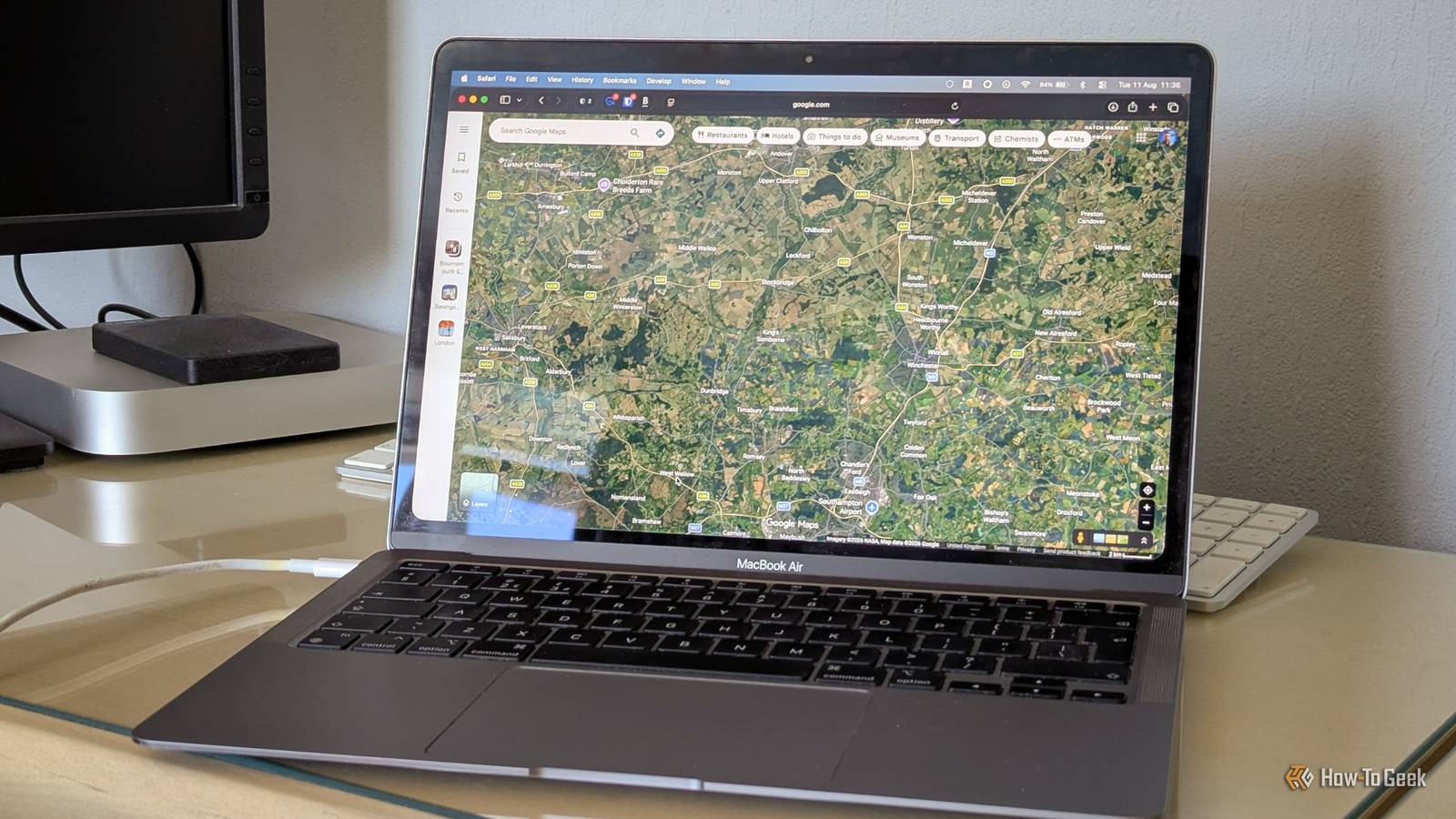
I’m perfectly happy doing plenty of things on my phone, but Google Maps isn’t always one of them. Ask me why, and I could probably give you 50 reasons. The biggest one? Maps feel far less cramped on my PC. I get a much bigger view of the map, more room to move around, and the freedom to use my mouse and keyboard instead of constantly pinching and dragging on my phone. After using Maps this way, I’ve realized that some tasks are simply more enjoyable — and much less fiddly on a bigger screen.
Read on to see how I use Google Maps differently on my PC, including one trick my younger brother actually had to teach me.
Measuring distances and areas
I’ve become a surveyor
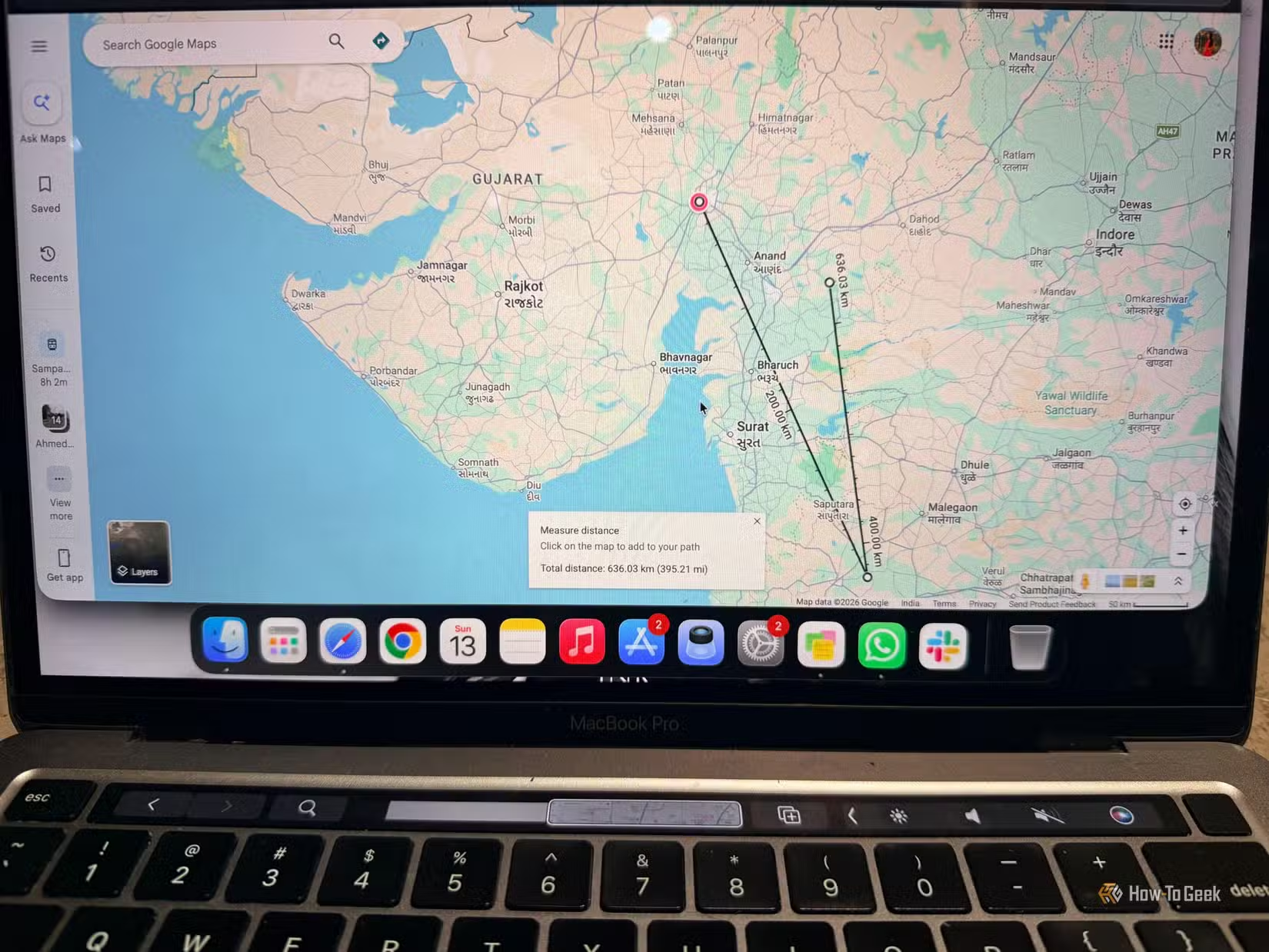
For anyone who doesn’t know what a surveyor does: they’re the people who measure distances, boundaries, and areas in the real world. Well, I’ve recently started playing surveyor on my PC, thanks to Google Maps. Now I can right-click my starting point and choose Measure distance to start measuring. I can then click another location to see the distance between the two points and keep adding more points if I want to measure a longer route.
But I don’t stop at measuring straight lines. By adding more points, I can trace a walking route, follow a road, or outline an irregular shape to get an approximate area measurement. On my PC, I have a much bigger map to work with and a mouse that lets me place each point exactly where I want it. Is it something I need every day? Definitely not. Is it surprisingly useful when I’m curious about a hiking trail’s length or where a property boundary stretches? Absolutely.
And yes, my younger brother beat me to this one.
Planning a complicated trip
My PC is my travel desk
Planning a trip feels exciting on day one, but it can get exhausting when I keep adding places to the itinerary. One restaurant here, a museum there, maybe a hotel somewhere in between — and suddenly I’m jumping all over the map trying to figure out what actually makes sense. This is when I prefer Google Maps on a PC. The larger screen gives me a much better view of the entire area, and I can save places to my lists as I go. I can also keep my shared note in Google Keep or other travel research open in another tab while I work out the route in Maps.
If one of my days includes several stops, I can use my mouse to zoom in and out, move around the map, and adjust my plans without feeling like I’m fighting the screen. I wouldn’t necessarily open my PC just to find the fastest route to the museum, but I definitely prefer it when I’m planning an entire day or even an entire trip. Seeing everything together saves me a lot of back-and-forth on my phone. My phone gets me there; my PC helps me figure out where I actually want to go.
Exploring before I even leave home
My pre-visit Maps ritual
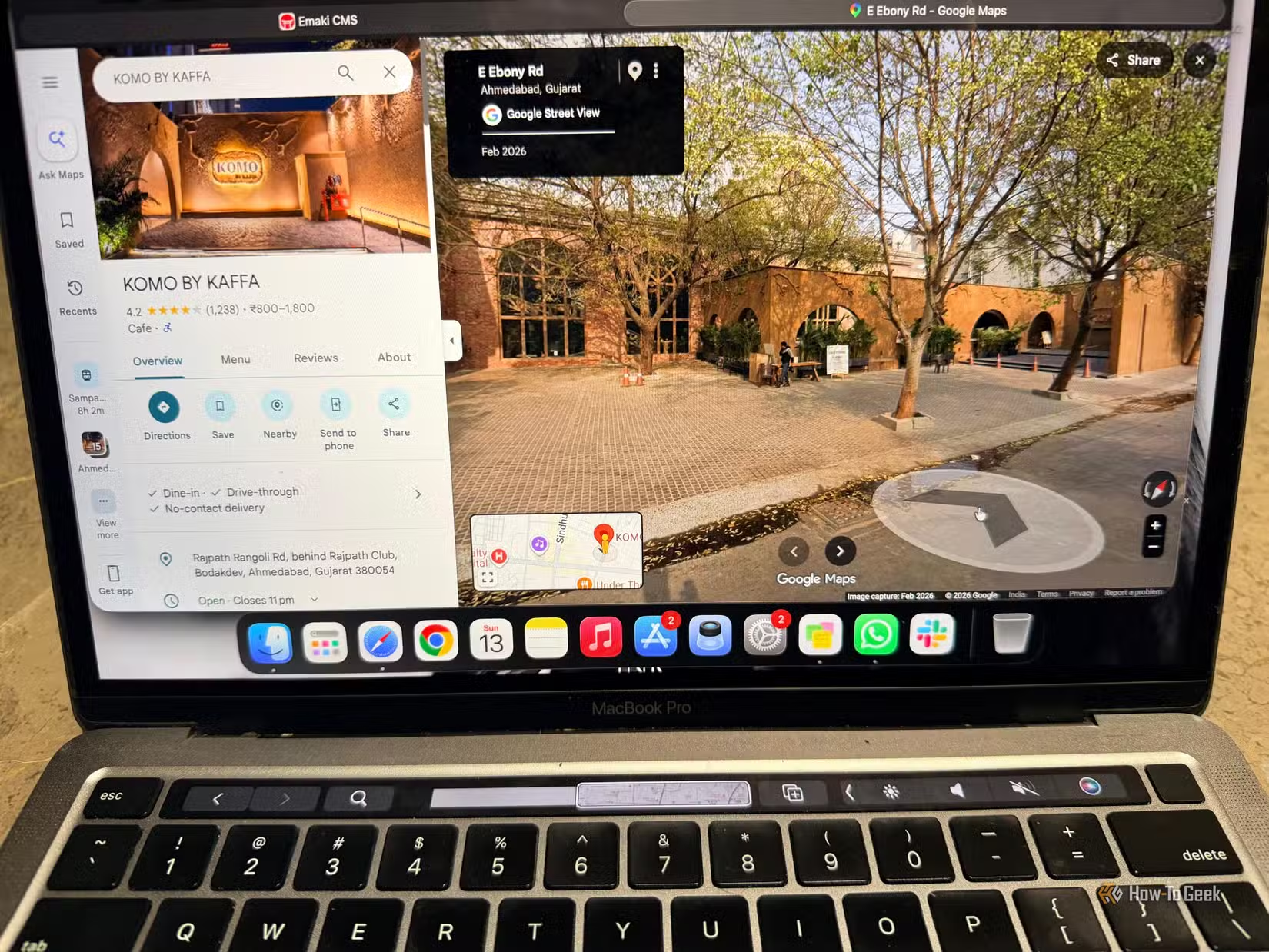
I like to be there even when I’m not there. Before visiting a new tourist spot, a palace, or even a neighborhood I’ve never been to, I like to use Google Maps on a PC to snoop around a little. I prefer a PC for this because browsing photos and videos on a bigger screen is more fun and gives me a better feel for the place. Street View lets me virtually move through the area, while Satellite View helps me understand the bigger picture. I usually check for parking spots and any ice cream parlors nearby for my instant sweet cravings.
On my PC, I can zoom in, drag around, and explore the map without feeling cramped — and we all want easy things, right? Honestly, I’ve gotten so used to exploring places before I even visit them that I now feel slightly addicted to it.
Using Gemini with Google Maps
I let Gemini surprise me
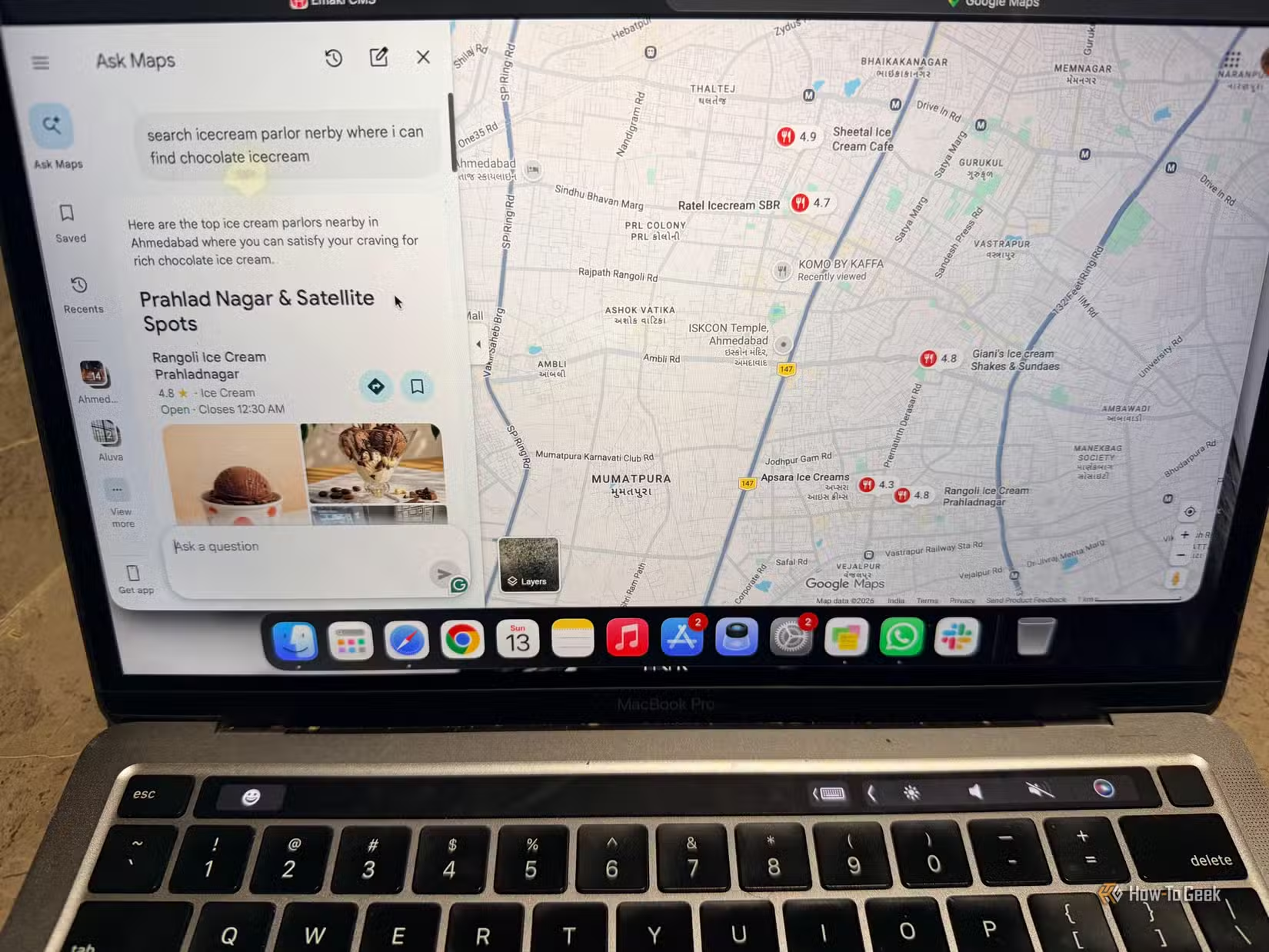
Is Gemini Google’s favorite child? I wouldn’t be surprised. It seems to be popping up everywhere, and I’ve started using it alongside Google Maps too. Sometimes I don’t have a particular place in mind, or I’m not even traveling — I just want ideas and don’t want to sit idle.
I ask Gemini a lot of questions, like what I can do on a lazy Sunday, where I can discover interesting places around a location, what I can do nearby, or where I can find a good dessert. Once Gemini gives me a few ideas, I open Google Maps on my PC and explore them on a bigger screen. I can check the location, look around the area, and see what else is nearby without constantly switching between apps. Gemini often sends me down a rabbit hole I wouldn’t have found on my own, and honestly, that’s half the fun.
My phone can take a break
Yes, you read that right: my phone can take a break, at least for these tasks, because I’d almost always choose my PC over my phone. I still use Maps on my phone when I’m out or just need directions, but when I have a choice, I like more screen space and a mouse.
Try giving your Google Maps a little more space to breathe.