
There was a time when creating automations on your phone required powerful third-party apps with complex tools. Nowadays, most Android phones come with built-in automation features. You can easily set them up without much effort.
Of course, third-party automation apps are still useful, but you don’t need anything complicated. I’ll show you a few simple routines that you can create with your Android phone’s built-in tools and simple apps from the Play Store.
Change alert mode at specific locations
Everyone can do this
Let’s start with an automation that’s built into practically every Android phone. If you find yourself switching between silent, vibrate, and audible alerts on your phone, you can make that happen automatically based on your location or Wi-Fi network.
On a Google Pixel phone, go to Settings > System > Rules. Tap “Add rule,” then select “Add Wi-Fi network or location.” This is what will determine when the mode activates — it can be based on the network your phone is connected to, or your physical location. After that, pick one of the modes to enable when you’re there.
For Samsung Galaxy phones, you’ll use the “Modes & Routines” app. Create a new routine and select “Place” or “Wi-Fi network” as the trigger. Then, look into the “Modes,” “Sounds and vibration,” or “Notifications” actions for the second half of the automation.
Don’t limit yourself to locations and networks
The previous automation is very useful, but you can get even more granular. With a few cheap NFC tags scattered around your life, you can seamlessly switch between modes when you’re doing different tasks. For example: studying, reading, sleeping, folding laundry, driving, etc.
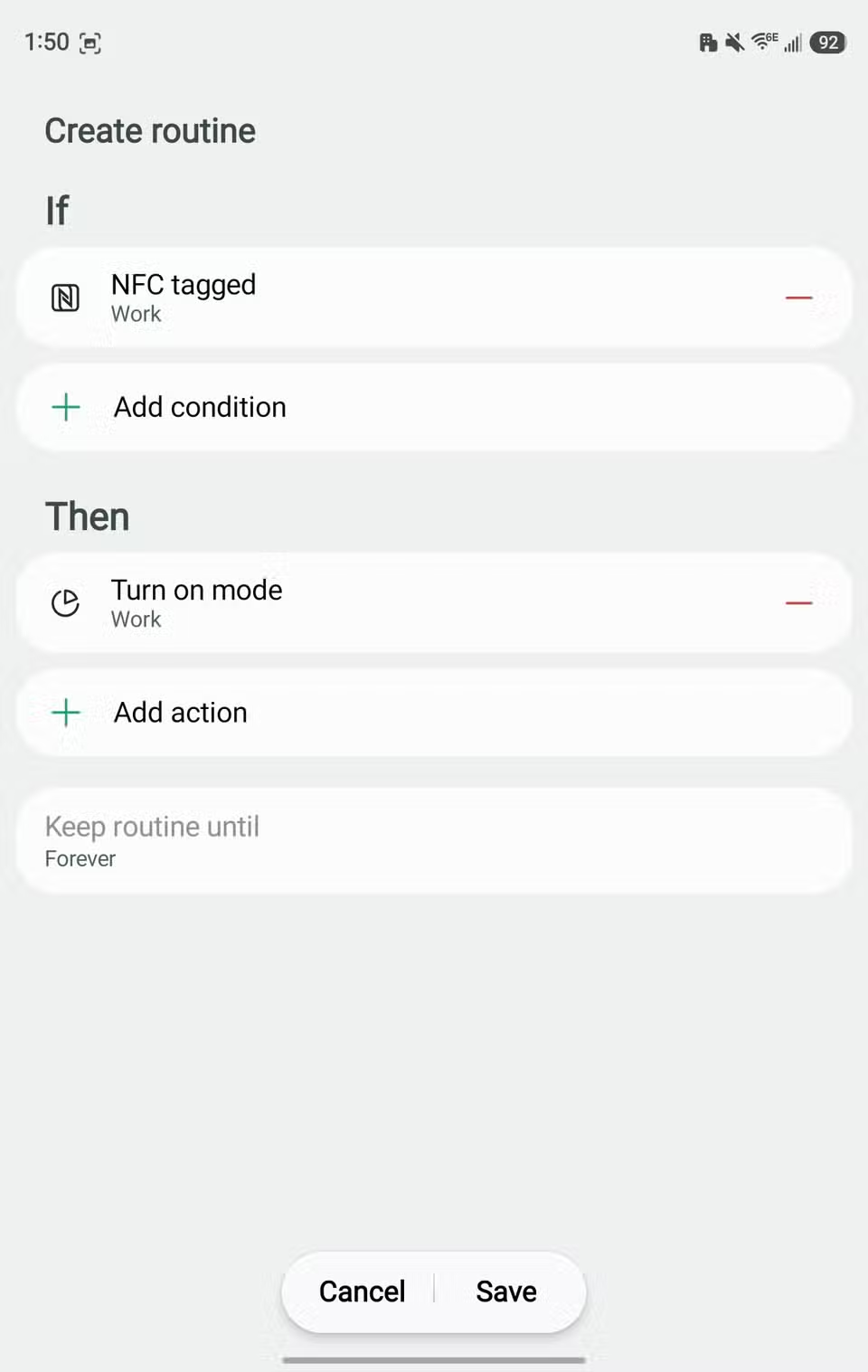
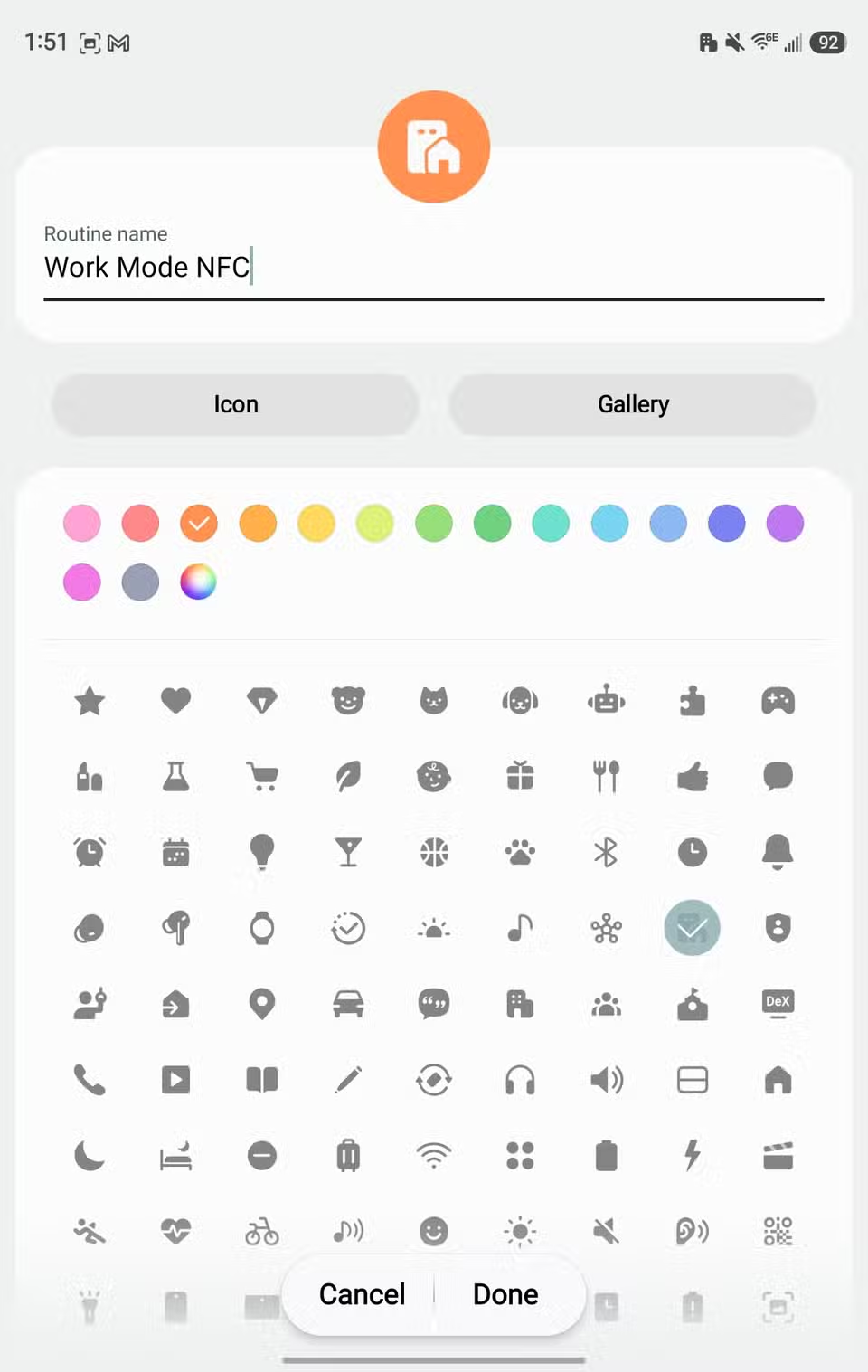
This is very easy to do if you have a Samsung Galaxy phone. Simply choose “NFC tagged” as the trigger for an automation in the Modes & Routines app. The Pixel’s Rules feature can’t use NFC tags, though, so you’ll need a third-party app such as “NFC Tools.” For both methods, you’ll scan an NFC tag to add it, then choose from a list of actions.
Turn off Wi-Fi when leaving your home
Stop the constant scanning
Most of us have one “main squeeze” Wi-Fi network: our home network. When we venture out into the world, the known networks become more sparse. So, why keep Wi-Fi on when you’re not going to use it? One of the simplest and most useful automations you can create will turn off Wi-Fi when you leave home and turn it back on when you return.
If you use a Samsung Galaxy phone, this can be accomplished in the system settings. Go to Settings > Connections > Wi-Fi > (three-dot menu) > Intelligent Wi-Fi > Turn Wi-Fi on automatically. Toggle it on, then select your home network. Easy peasy.
Sadly, Pixel phones do not have this feature. However, you can replicate it with an app called “Automate.” Create a flow with the “Location at?” and “Wi-Fi” set state” blocks. After selecting a location, drag the “No” output to “Disable Wi-Fi,” and the “Yes” output to “Enable Wi-Fi.” Here’s more information about using Automate.
Send a text when you leave work
“I’m on my way”
I’ve shown you how to create an automation with the Automate app — now let’s check out another great, easy-to-use app called “MacroDroid.” We’ll use it to create an automation that can send a text to a specific contact after a trigger. For example, texting your spouse when you leave work.
I’ve written an article with the full step-by-step process, but here are the basics. There are several ways to trigger this. In the linked guide, I activated the text by connecting to my car in a specific time window. It could also be kicked off by leaving a location, disconnecting from a network, or launching an app.
Automatically save your parking location
Because Google removed the feature
The Google app used to be able to automatically detect when you parked and save the location. Eventually, that was removed, but Google Assistant could still do it (Gemini can’t). Now, you have to manually open Google Maps or tap a toggle after navigating in Google Maps.
I’ve left this automation for last because it’s the most involved — we’ll be using MacroDroid again. The full instructions can be found here, but I’ll explain the general idea. Essentially, when you disconnect your phone from your car, the automation will grab your coordinates and feed them into a macro. Then, a notification will appear on your phone with a button that opens Google Maps to the location. It’s pretty slick.
Android could do more with automations
While powerful third-party apps are part of the appeal of Android, the OS could definitely use some added automation oomph. Samsung is leading the charge with the excellent Modes & Routines app, but Pixel phones and other devices lack that level of built-in automation. It’d be nice to see some sort of OS-level implementation for the ecosystem at large.