
If you use Linux, you’ll eventually want to get comfortable with the terminal. It streamlines your workflow and opens up a whole new way of computing that graphical apps simply can’t match. This includes writing Bash scripts for system management and automation or administering a remote machine over SSH.
That said, if you’re just getting started and relying on online guides or AI chatbots for help, you need to be extra careful. Some commands can look completely harmless, but will break your system in seconds. Here are my top five picks for innocent-looking commands that you wouldn’t think twice about but can completely ruin your day.
rm -rf ~ /Downloads/old
The most expensive typo you’ll ever make
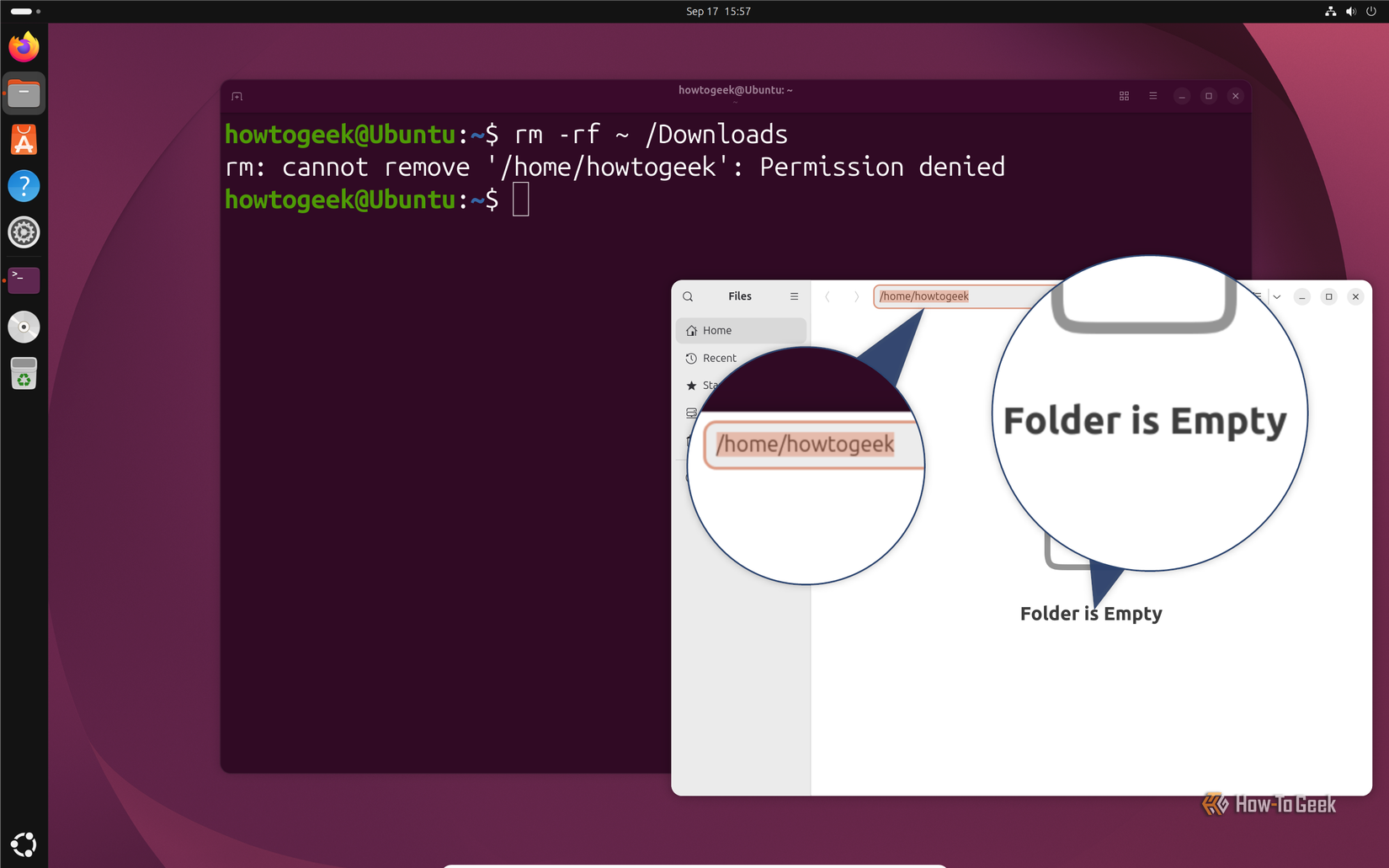
The traditional dangerous version of this command goes like this:
sudo rm -rf /
Here, you’re essentially running the remove (rm) command with elevated privileges and telling it to recursively (-r) and forcefully (-f) delete everything under /, the root of the filesystem.
So, clearly, rm -rf can be dangerous, but it’s not some forbidden command you should never touch. In fact, it’s a standard way to delete a directory and everything inside it. Say you have an old Downloads folder you want to get rid of. The quickest way to do that is:
rm -rf ~/Downloads/old
The problem is that a single misplaced space can change everything. In the correct command, the tilde (~) and the path form one continuous string: ~/Downloads/old, which the shell expands to a path under your home directory, such as /home/dibakar/Downloads/old.
But let’s say you accidentally add a space after the tilde:
rm -rf ~ /Downloads/old
Now the shell sees two separate arguments. The first is ~, which expands to your entire home directory. So the command will now happily wipe out your documents, photos, configuration files, and everything else in your home directory, and then move on to the other path you specified.
echo “a new line of text” > imp.config
The difference between appending to a file and overwriting it
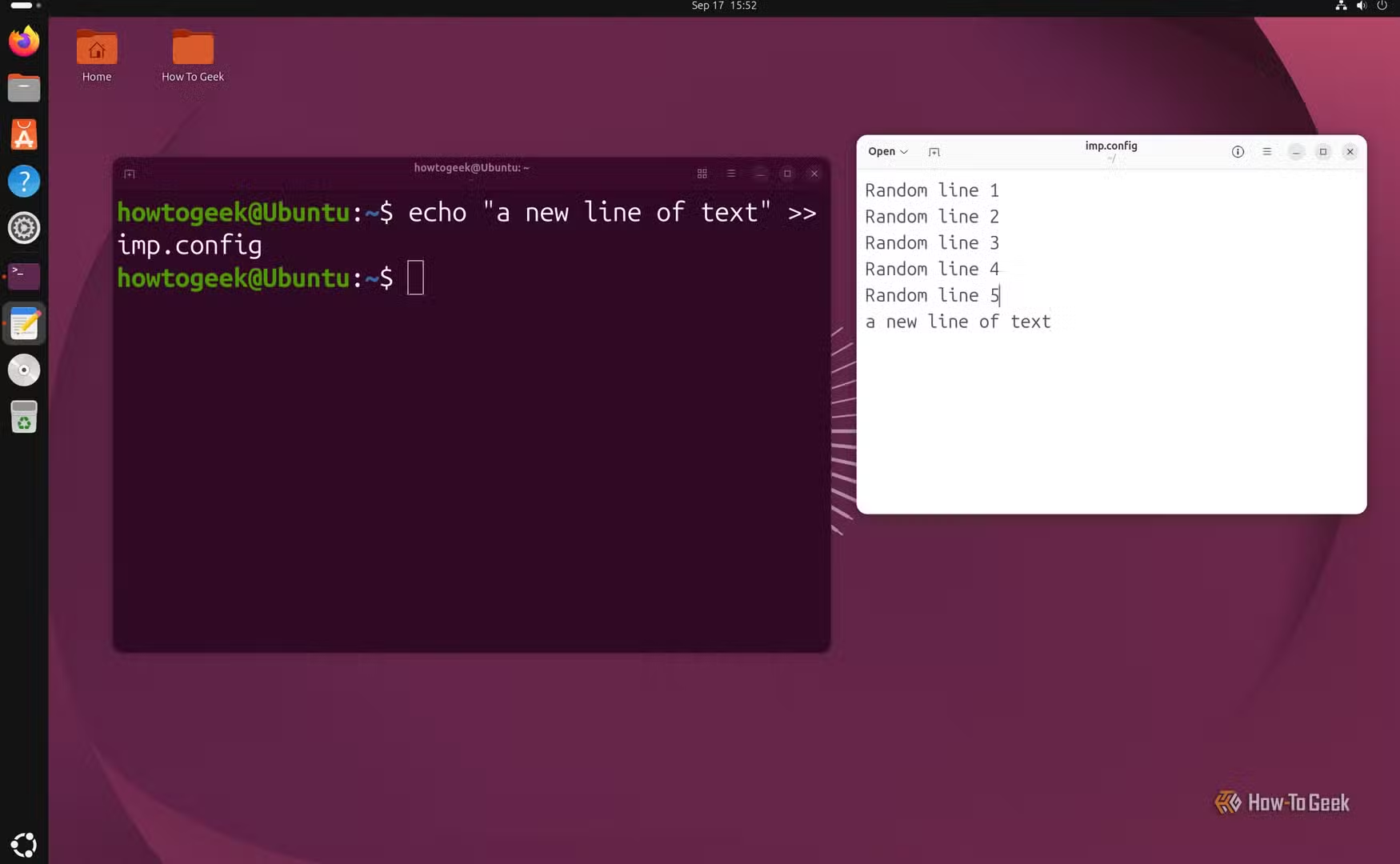
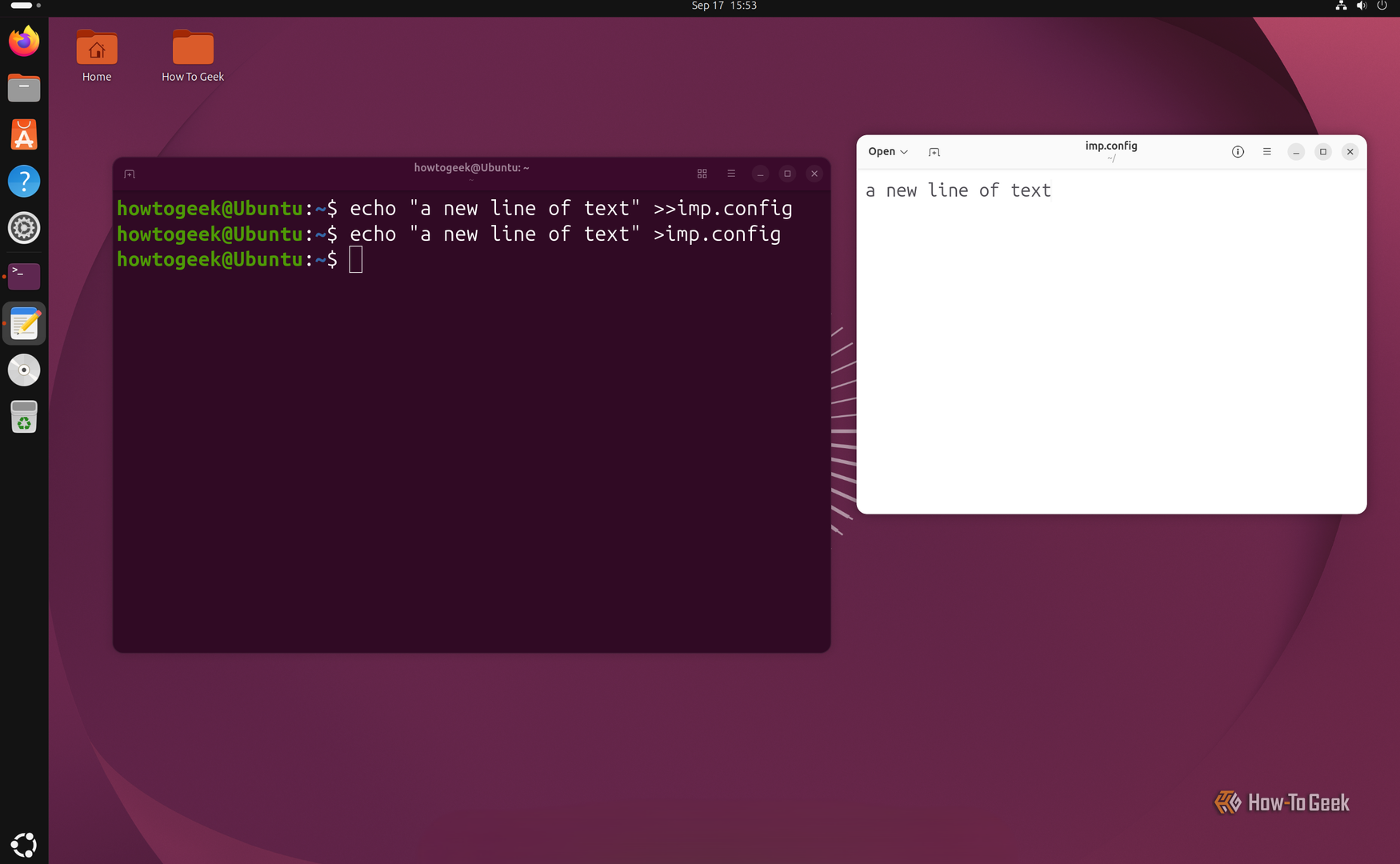
If you’re working in the terminal, one way to add a new line to a configuration file is to open it in a text editor like Nano or Micro and type it in. However, a faster way is to echo the same line straight into the file with a single command:
echo "a new line of text" >> imp.config
This command adds “a new line of text” to the bottom of the imp.config file.
However, let’s say you were in a hurry and mistyped it as:
echo "a new line of text" > imp.config
Now you’ve replaced the contents of your old imp.config file with a new file containing just one line: “a new line of text.” The only difference is that you typed “>” instead of “>>”.
That’s because the “>>” operator means append — it adds the command’s output to the end of the file while leaving the existing contents intact. The single-arrow “>” operator, on the other hand, means write or overwrite. It creates a new file and writes the output to it, or, if a file with the same name already exists, replaces its contents with the new output.
So, say imp.config originally had 10 lines of carefully written configuration, and you run the echo command with “>” instead of “>>”. Those 10 lines are gone. The file now contains exactly the one line you entered in the last command. I’ve personally done this to my .bashrc, which had hundreds of lines of customization built up over time.
I’m not saying “>” is more dangerous than “>>”. Each operator has its place, and it’s important to understand the difference so you can use them appropriately.
sudo ufw enable
It’s the equivalent of locking yourself out of your own home
This command is about as harmless as it gets on paper. It enables the firewall, which is genuinely good practice from a security standpoint and part of many routine setup checklists when configuring a new system.
The problem shows up when you run it over SSH.
Say, you’re setting up a remote machine and type sudo ufw enable to start the firewall. If your SSH connection isn’t already allowed — which is unlikely on a new setup — the firewall will kick you out and prevent you from reconnecting. You’ll need console or physical access to the machine to fix it.
This can be a mild annoyance if the machine is in the next room, but a disaster if you’re managing a server from another city, or worse, remoting into your home lab while on vacation.
To avoid the mishap, first allow your SSH service through the firewall with sudo ufw allow ssh (or explicitly allow your custom SSH port), and only then run sudo ufw enable. This creates the firewall rule before the firewall is activated, so your SSH connection can continue through the firewall.
This isn’t unique to UFW. The same general problem can occur with other host-based firewalls, such as firewalld.
:(){ :|:& };:
Just don’t paste a command you can’t read
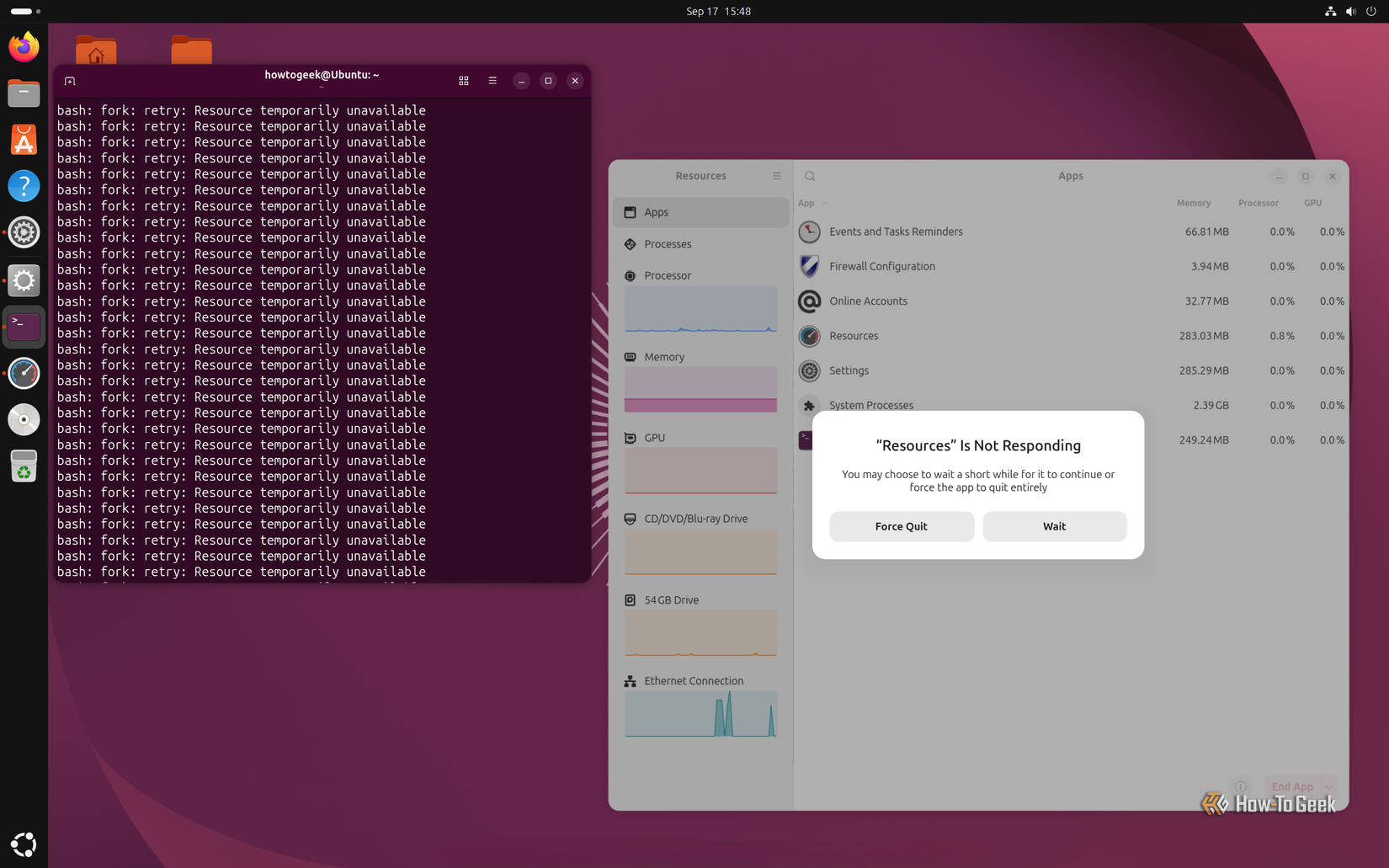
Last but not least, we have the fork bomb. It’s about as famous as rm -rf in the Linux community, but if you’re a new user, you might have no idea it exists and could carelessly type it in. In fact, I’ve personally seen this used as a prank in online forums.
Someone asked how to get fancy lettering (font ligatures) rendered in their terminal instead of the boring default text, and this evil–evil person told them to enter the fork bomb. On the surface, it almost feels logical that a weird string of symbols would render itself as fancy characters. However, what it’ll actually do is rapidly consume system resources, slowing everything to a crawl and potentially making your system unusable.
To understand why, here’s a quick overview of how it works:
- :() declares a function with the name “:”
- { :|:& } is the function body. Every time the function runs, it executes “:|:&”
- :|:& creates a pipeline containing two calls to the function and runs that pipeline in the background
- ; ends the function definition.
- The final : calls the function for the first time.
So it’s essentially a function that keeps calling itself — where the first call becomes two, then two becomes four, then eight, then sixteen, and it just keeps going. The number of processes grows extremely rapidly until the system hits its limits. You’ll notice a severe slowdown or the system becoming entirely unresponsive.
Now, the command itself doesn’t delete your files or install malware, but recovering from the resulting lockup will require a hard reboot. This can cause problems if your system was in the middle of writing data — for example, during a system update, backup, or file transfer. Likewise, anything you opened but didn’t save will likely be lost. It’s rarely catastrophic, but it certainly turns into a nuisance.