
AssembleDebug / Android Authority
Add Android Authority on Google:
TL;DR
- Google Contacts could soon let you share your Calling Card with new people without having to call them first.
- This will be done by allowing users to add their Calling Card images to VCF files.
- However, the recipient must have the Google Contacts app installed to import the Calling Card data.
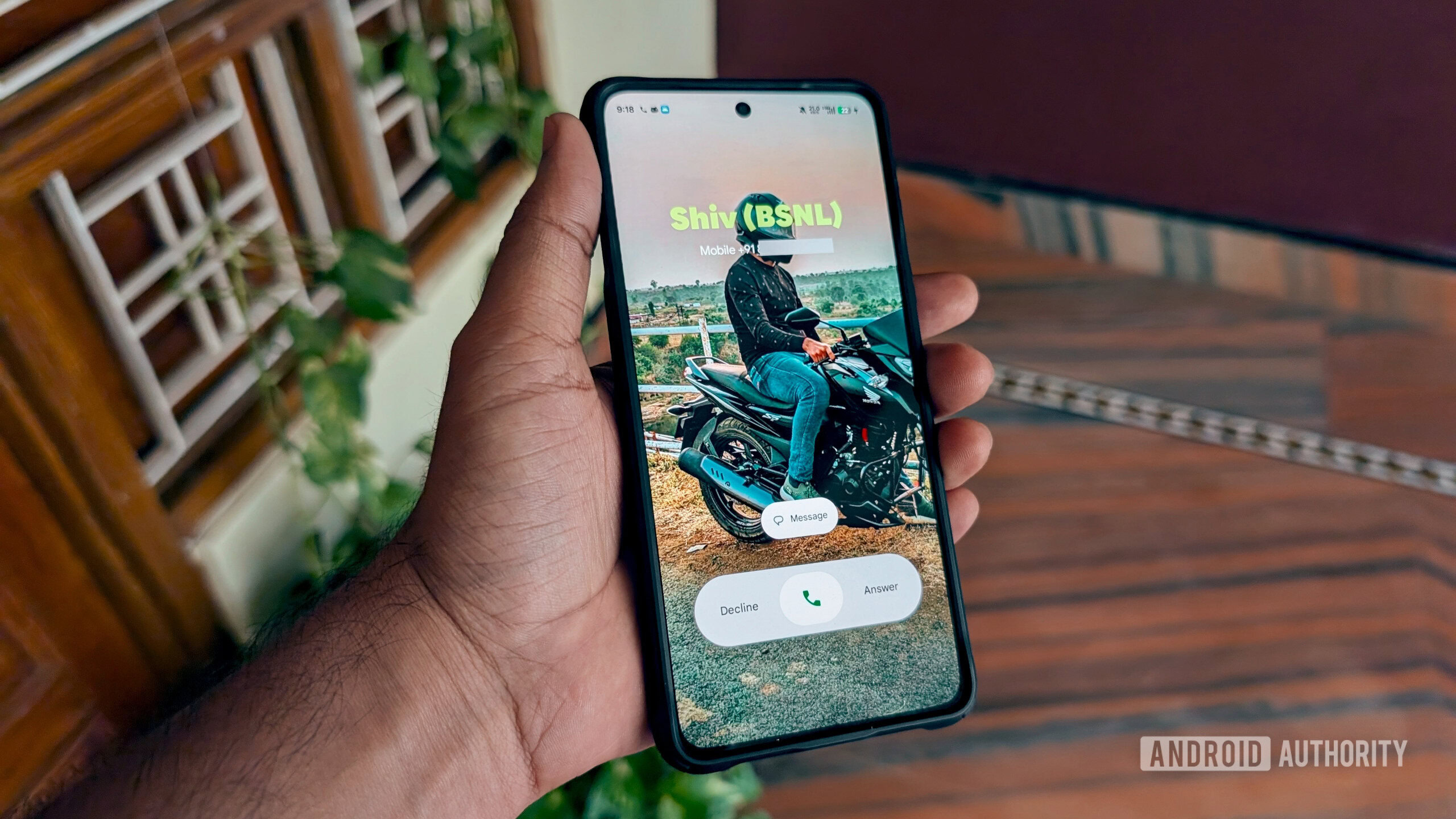
When Google introduced Calling Cards to the Contacts app last year, it gave Android users a chance to give their calls a more personalized touch. As you probably don’t want your image shown to random strangers, Google limits who can see your visual business card to only your contacts or anyone who has you saved as a contact. However, Google is now working on a third option that could let you share your Calling Card with new people.
You’re reading an Authority Insights story. Authority Insights brings you all the latest exclusive reports, app teardowns, leaks, and in-depth tech coverage from the Android Authority team that you won’t find anywhere else.
The current two settings work well as privacy-first options, but what if you want to share your Calling Card with someone you recently met? Normally, this would require one of you to initiate a call first. But we recently spotted in version 4.88.28.981523105 of the Google Contacts app that the tech giant is cooking up a solution for this use case.
During our investigation into the app, we found that Google is working on adding support for sharing Calling Cards directly inside of Virtual Contact File (VCF) files. For those who are unfamiliar with .vcf files (a.k.a vCards), they are a standard text format used to store and share contact information like names, phone numbers, and email addresses. They allow you to quickly import contacts straight to your smartphone.
How will Google bundle Calling Card images into VCF files? First, when you select “Share contact” from the contact details page, the built-in sharing sheet will pop up. The interface will prominently display the Calling Card image at the top of the screen. You can see examples of this in the two screenshots above.

AssembleDebug / Android Authority
When you tap on the “Choose details to share” button, the screen reveals a new toggle. There’s now a Calling Card option at the top of the details list. This toggle is selected by default along with the rest of your basic text data (see screenshot above). With Calling Card selected, tapping “Next” will send this enriched VCF file over Quick Share, WhatsApp, email, or any other messaging platform.
This feature uses the standard “Share contact” mechanism. As a result, it works for your own profile as well as any other contact in your address book that has a saved Calling Card.
The final two screenshots show what the experience is like for the recipient. When the recipient taps the received VCF file to import it via Google Contacts, the import screen will display all the standard information, along with the Calling Card image at the top. Once the recipient saves the file to their device, they will see a subtle “Calling card shared with you” text prompt at the bottom of the screen when opening that contact’s details page.
Although third-party contact apps can easily parse the basic text from this enriched VCF file, the recipient will still need the Google Contacts app to import the calling card data.
⚠️ An APK teardown helps predict features that may arrive on a service in the future based on work-in-progress code. However, it is possible that such predicted features may not make it to a public release.
Thank you for being part of our community. Read our Comment Policy before posting.