
I wanted an app that seemed easy: the temperature and forecast displayed on a widget on my desktop. Instead, Windows 11 gave me a “widget” with ads and entirely too much extra stuff.
Most people either deal with it, access a third-party weather app via their browser, or use their phone. I decided to take a different route. After a few hours with Claude, I created a small weather app that uses free weather APIs and features no unnecessary bloat.
My own personal weather app for Windows 11
It has very few features
I deliberately created a single-purpose desktop widget that displays current weather conditions, a brief forecast window, and any active Nation Weather Service (NWS) alerts, like Tornados or Flash Floods. I imaginatively named it “WeatherWidget.”
It runs as a small window that I can pin to the corner of a screen and it just displays the weather. There’s no news feed, no advertisements, and no weather information about any location other than the one I specify.
It even changes color when there is an emergency notification to draw my attention to it.
The data all comes from free sources
The data that feeds that app comes from two different sources. I deliberately selected Open-Meteo for the forecast because it is completely free for non-commercial use, and it doesn’t require an API key, which makes getting it up and running easy.
The other information comes from the US National Weather Service (NWS) (api.weather.gov). The NWS provides the information for severe weather alerts, like tornado watches and warnings, flash floods, blizzards, and more.
Keeping it light
This weather app was designed to remain pinned in a corner of my screen or on the taskbar pretty much 24/7, so I wanted it to be as light as possible. The Windows Weather app is surprisingly heavy for what it is—a quick check. I used it regularly for a few days and found that it consistently consumes between 500MB and 750MB of RAM. I’ve seen it well over a gigabyte on occasion, though that isn’t the norm. That is entirely too much for a simple weather app.
It sounds ridiculous to quibble over half a gig of RAM, but when you’re working with local AI, that sort of thing matters—I regularly run my GPU’s VRAM and system RAM up to nearly 100%. In that scenario, an extra 500MB is significant.
From a resource perspective, the difference between WeatherWidget and the Windows Weather app is quite large. The RAM footprint of my app falls between 70 and 80MB at all times; Windows Weather is usually at least 7x that, and can be as much as 10x that.
And while neither are especially demanding on the CPU or on the network, my custom app gives me control over how frequently it fetches updated weather information. If I want forecast updates every 5 minutes, I can do that. If I only need them every 30 minutes, I can do that too. I can also independently change the polling rate for severe weather alerts, so I check for a tornado warning once every two minutes, while the broader forecast is only updated every 30 minutes.
So far as I can tell, there is no way to adjust how frequently my forecast within the Windows Weather app at all, and I definitely can’t change a setting to prioritize getting fresh information about weather emergencies over the regular forecast.
I left out the unnecessary bits
To help keep resource use to a minimum, I deliberately prompted Claude to create a minimalist app. There is no account login, no telemetry, and no location tracking besides the information I manually enter. It doesn’t include a radar, pollen counts, or dubiously-helpful reminders, like whether I should bring an umbrella when a torrential downpour is in the forecast.
Building your own weather app with an AI
Have a coherent vision first
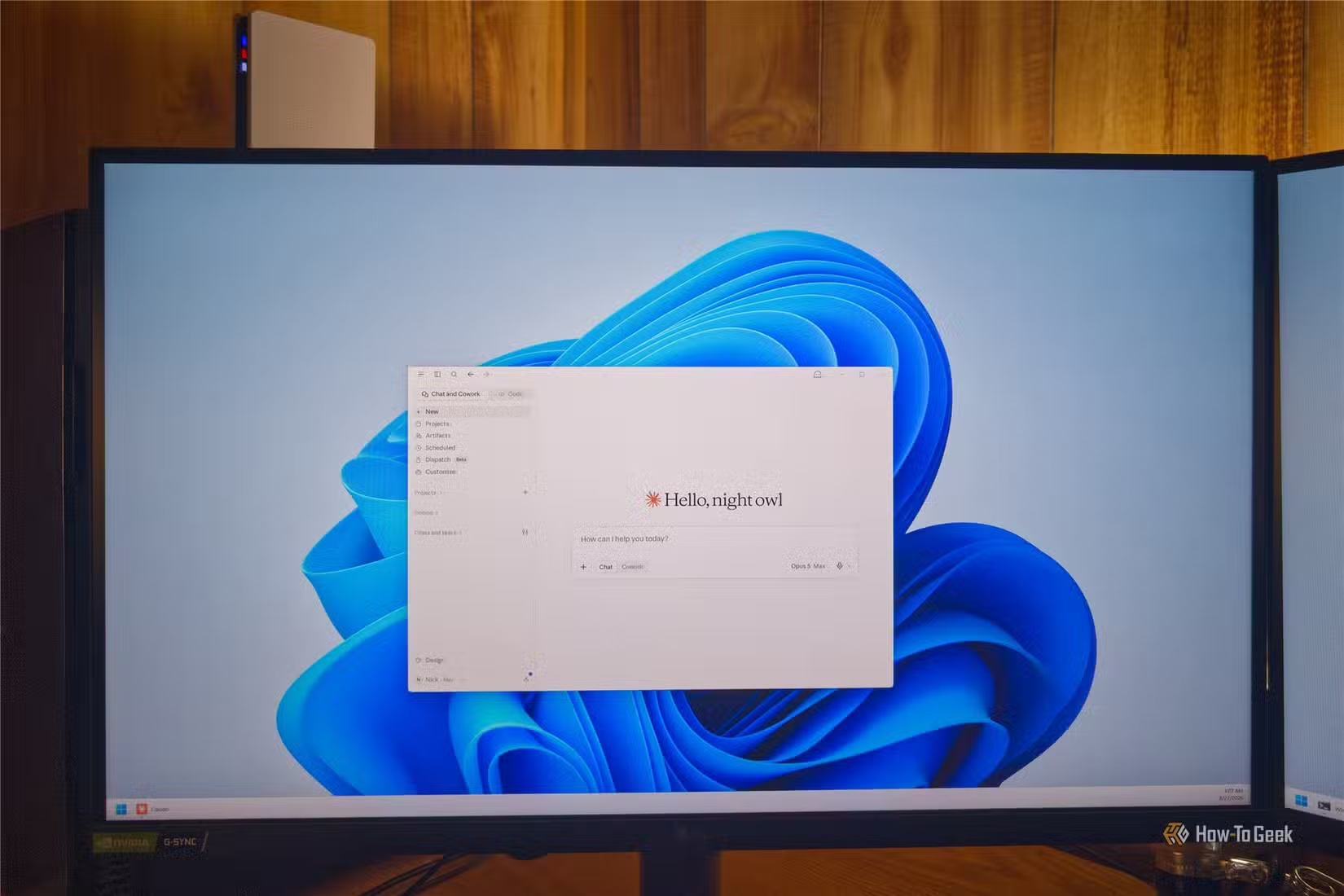
Vibe coding, much like manual coding, is most productive when you start with a plan rather than improvising as you go. Thankfully, you don’t need to write pseudocode, you just need a coherent vision first.
I started by giving Claude a precise, plain-language description detailing the window size, how I’d like the banner to look, and what information I’d like it to display. I also specified that I wanted to use two different APIs (Open-Meteo and the NWS) with independent polling rates that could be adjusted incrementally. I also specified that I wanted the program to behave more like a widget than a regular windowed app, and that it should have an optional, unobtrusive taskbar icon too. Finally, I told it that the widget should dramatically change when there was a NWS weather alert, so it was visually apparent that something important was going to happen.
Specifying all of that up-front is very important for two different reasons. The first is your success rate—LLMs are good at writing code, but they need clear instructions to write the program you want. The second is cost. Whether you’re paying by the token or you have a fixed usage limit for a subscription, you don’t want to make your AI of choice rewrite the entire program thing three times as you iterate on the project. Clearly defining your scope and goals early ensures that the program’s architecture will be compatible with any tweaks you might want to make along the way.
Replacing an app is easy now
Once, replacing a bloated app was a pretty serious undertaking. You needed to learn the appropriate programming languages, develop an eye for UI design, and then actually take the time to build it.
Today, you don’t need to do that. You only need to develop a clear vision of what you want and how you’d like it to work, then you can just ask an AI to make it for you.