
Your busted laptop from 2019 or that old desktop that has been gathering dust in a closet might not be suitable for use as a “normal” PC, but they have more than enough power to run useful services. You don’t need a data center tucked under your desk to get started with self-hosting—almost any PC will do.
These are six lightweight apps or services that you can run on almost any PC that’ll still boot today without requiring an expensive RAM upgrade.
Pi-hole
Network-wide ad-block and tracker blocking
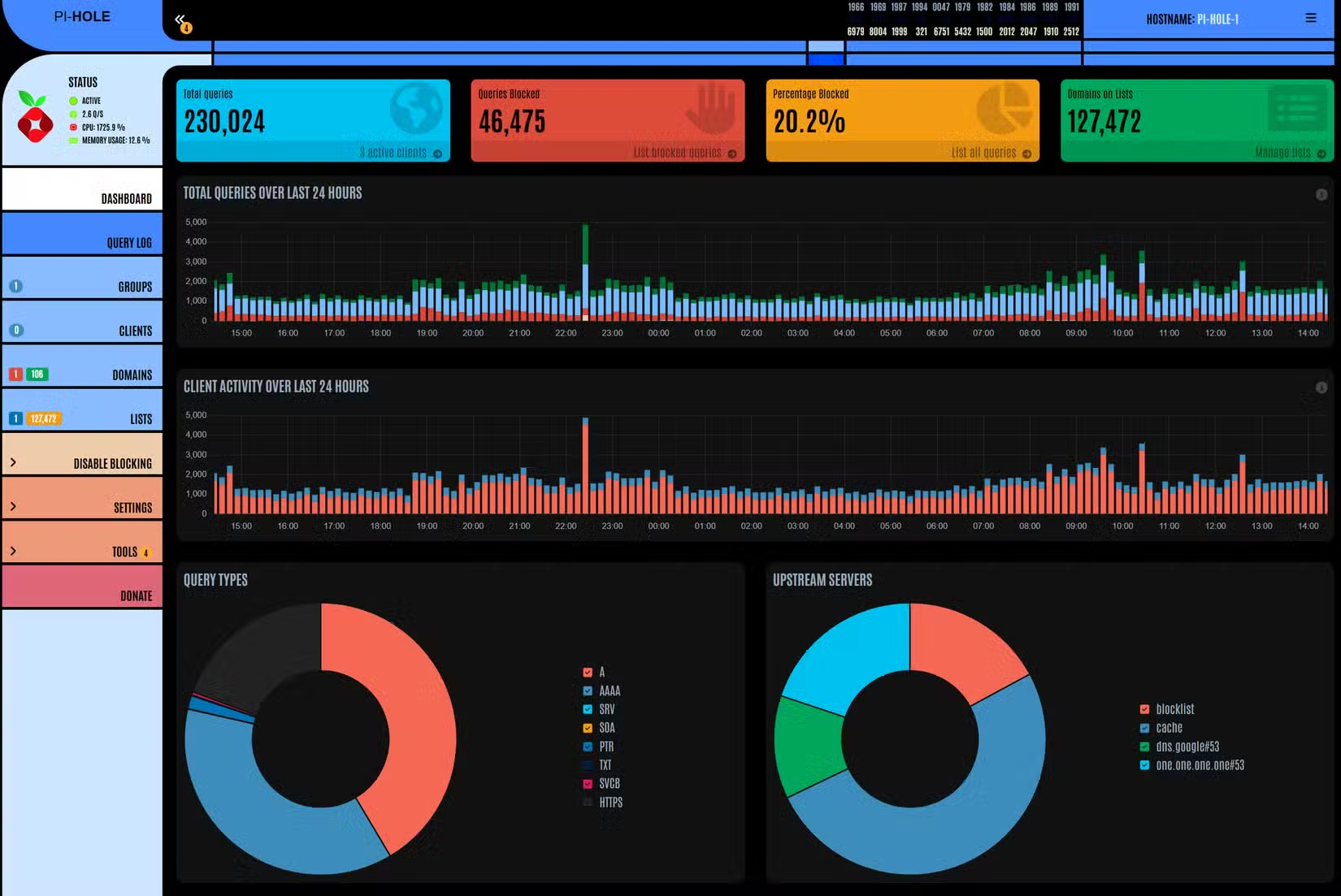
Pi-hole is a classic self-hosting project because it is useful, easy to set up, and low-stakes if something breaks. A Pi-hole sits between the devices on your network and a DNS server on the internet, where it can effectively prevent specified websites from loading by referencing a blocklist.
If you use the right blocklist, you can block ads, trackers, and even some malware.
That makes it an especially useful project if you have a lot of smart devices on your network that don’t support conventional ad blocking.
Additionally, the Pi-hole’s dashboard makes it easy to know which device is trying to access the internet, when, and the domain it is trying to connect to. If you’re privacy conscious, that allows you to prevent many smart devices from “phoning home” without your permission.
You can run a Pi-hole using Docker on almost any major operating system, but I typically install it using the official install script on Linux instead. Once it has been installed, you need to log into your router’s admin panel (use the app or the web portal) and point the router’s DNS server at the Pi-hole’s local IP address.
Then all you need to do is select a blocklist that you like.
Vaultwarden
Store your own passwords securely
Bitwarden is an open-source password manager that normally relies on Bitwarden’s official servers to store your passwords, but it isn’t strictly necessary. If you want, you can host your own password server using Vaultwarden.
Vaultwarden is an implementation of the normal Bitwarden Client API written in Rust.
Critically, that means that you can use the official Bitwarden app on your phone or desktop—or the browser extension—normally to connect to it. You also get the premium features Bitwarden offers, like time-based one-time-passwords (TOTPs) and attachments at no cost.
Vaultwarden only uses a few hundred megabytes of RAM (at most), so it’ll run on pretty much anything. However, you’re assuming total responsibility for maintaining robust backups of your passwords and making sure that your network is secured against would-be intruders.
Syncthing
Keep files moving between devices without a cloud account
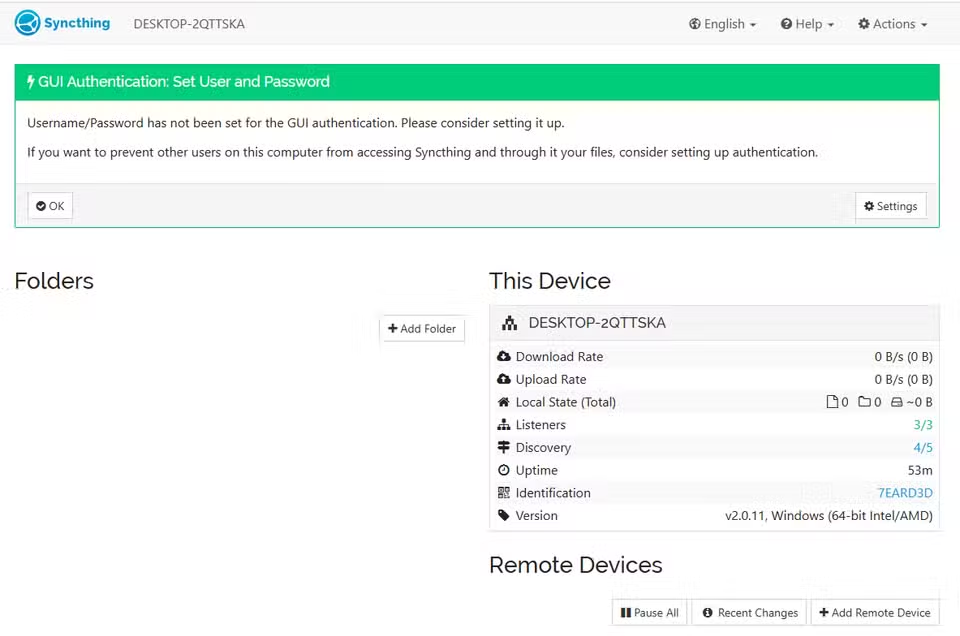
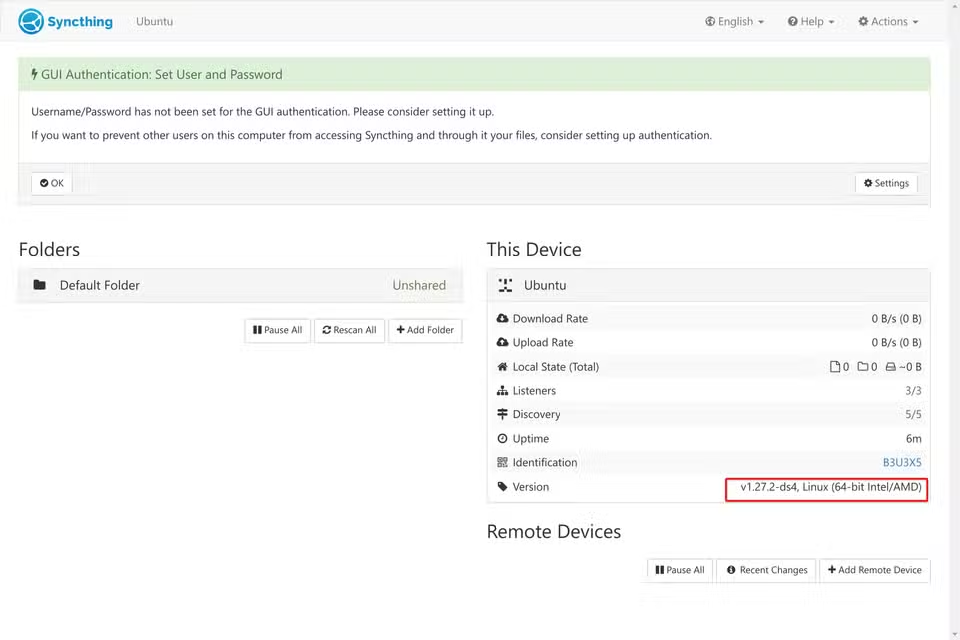
If you don’t like using Google Drive or OneDrive every time you need to sync your files from one device to another, you could self-host Syncthing instead.
Rather than rely on a cloud-based provider, Syncthing works by creating a continuous, encrypted peer-to-peer sync system between the devices you set up. Those devices could be anything, ranging from phones to personal computers to home servers.
When you add an old PC into the mix as an always-on node, it functions a bit like your own personal central cloud server. Say you have three different devices on your network: A, B, and C, where B is your old PC working as an always-on node.
If A and C need to sync their files, but they’re not always online at the same time, they can both just send the files to be synced to B in the interim. When A comes online, B will send C’s files to the A device and vice versa.
Syncthing’s footprint is pretty small, and usually only consumes a few hundred megabytes of RAM at a time.
News and a feed without the algorithm
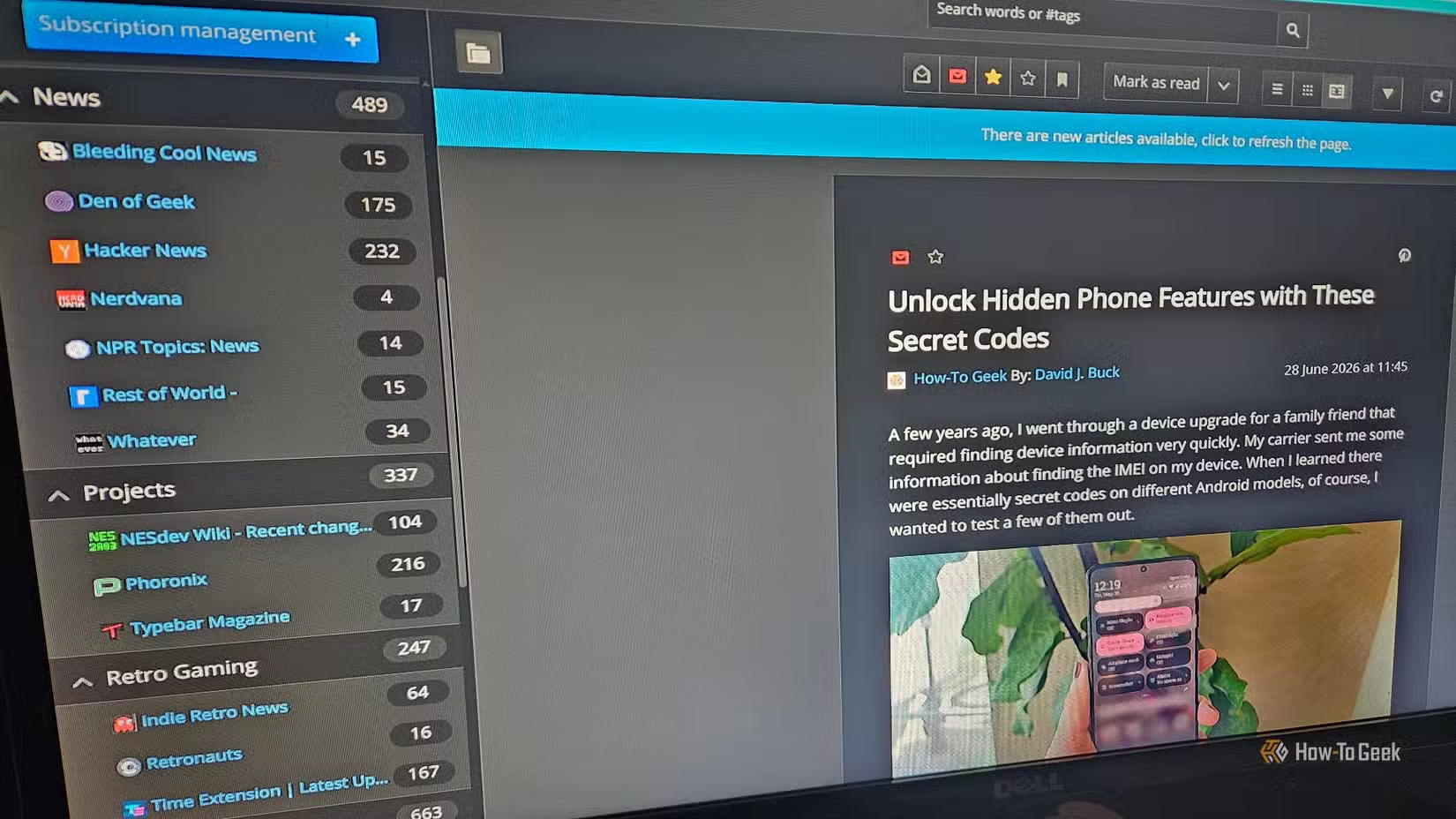
One of my least favorite parts of the modern internet is algorithmically driven feeds. So, I switched to an RSS feed instead.
FreshRSS is a simple, lightweight RSS aggregator that you can self-host. It offers a web UI and API support for mobile apps, so you can access it from any modern device.
It allows you to follow blogs, subreddits, YouTube channels, and countless other things without a recommendation engine making decisions on your behalf.
Uptime Kuma
Monitoring everything you host
Once your homelab has grown to more than a handful of services, manually keeping track of them all is a pain.
Uptime Kuma is a self-hosted service that monitors them for you. If something goes wrong, you can have notifications sent to you via Discord, Telegram, Email, or ntfy.
It isn’t a system metrics tool, though. If you want an overview of your network’s performance, or detailed CPU and RAM usage information, you’ll need to look elsewhere.
Homepage
If you build a homelab, you need a dashboard
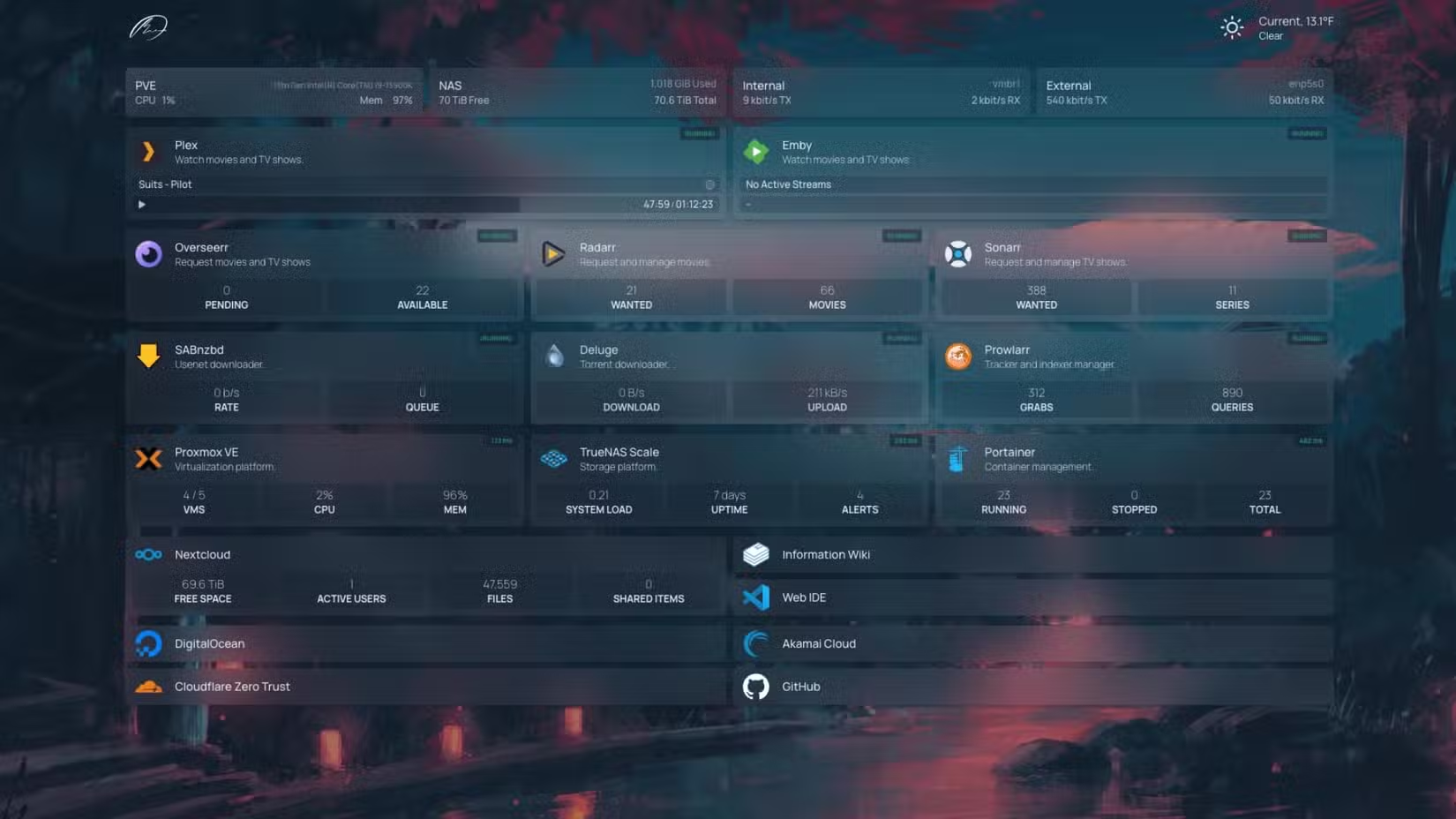
If you’re not running Caddy (or some other service) to give all of your services easily-memorable domain names, then keeping track of your services can get to be pretty tedious. I have more than 20 self-hosted services running on my network these days, and I have no hope of remembering whether Jellyfin or Navidrome live at 192.168.0.111 or 192.168.0.101.
Fortunately, I don’t have to enter an IP address manually most of the time. Homepage is a dashboard that provides an overview and link to all of the self-hosted services on my network. It integrates neatly with Pi-hole, Uptime Kuma, Proxmox, and Docker to provide tidy widgets that display the status of various services running on your network.
The only slight downside is that you handle configuration via YAML files, which are a type of text file. They’re human-readable, so you don’t need to know C++ or Python to configure Homepage.
Self-hosting doesn’t need anything special
None of the services on this list are especially demanding, and if you use Proxmox or Docker, you could probably run all of them on a single 10-year-old desktop PC with 8GB of RAM as long as you are careful. If you had 16GB of RAM, you’d easily be able to run a dozen lightweight services.